Add Role Mapper for LDAP Integration
27/08/2026
While configuring an LDAP integration, you need to add a mapper that will assign LDAP users to user roles in Graph Modeling.
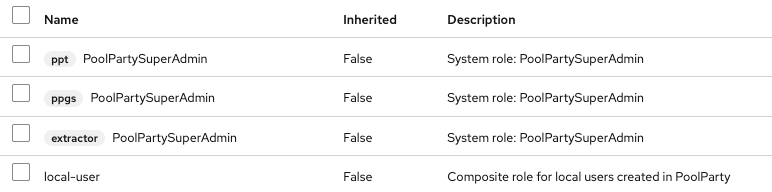
If the users on the LDAP server are assigned to groups with names matching the names of the user roles in Graph Modeling, you can add and configure a mapper that will assign the users to the corresponding Graph Modeling user roles. Configure three separate role mappers—one for each client (ppt, ppgs, extractor). For example ppt-role-ldap-mapper, ppgs-role-ldap-mapper and extractor-role-ldap-mapper (see option 1 below).
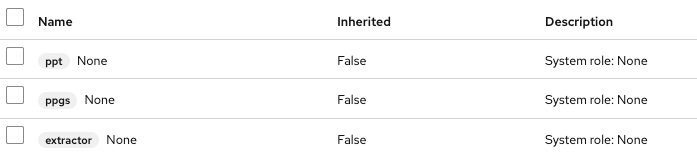
If this is not the case, use the default hardcoded-ldap-role-mapper which will assign the LDAP users to a placeholder user role None (see option 2 below). Configure three separate role mappers—one for each client (ppt, ppgs, extractor). Users with those roles cannot use Graph Modeling until a Graph Modeling SuperAdmin changes their role in the Graph Modeling User Management.
Make sure that the Graph Modeling user roles are represented on the LDAP server as follows:
There is an organizational unit (instance of the
organisationalUnitobject class), called for example Roles (1).Under this unit, there are groups (instances of a group object class) representing the individual Graph Modeling user roles (2).
The
cnattribute of the groups matches the names of the Graph Modeling roles, for instancecn=PoolPartyUser(3).Users are added to these groups via the
memberattribute (4).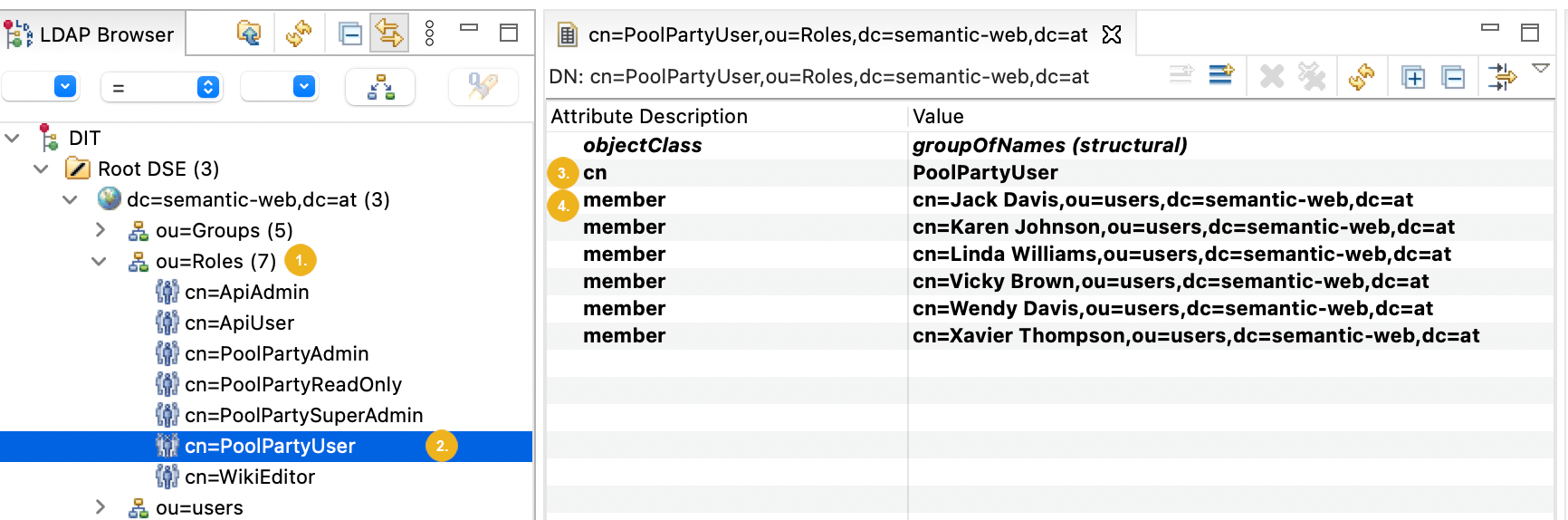
In Keycloak, open the user federation you configured for your LDAP server. For more information, refer to Configure LDAP Integration
Go to the Mappers tab.
Click Add mapper.
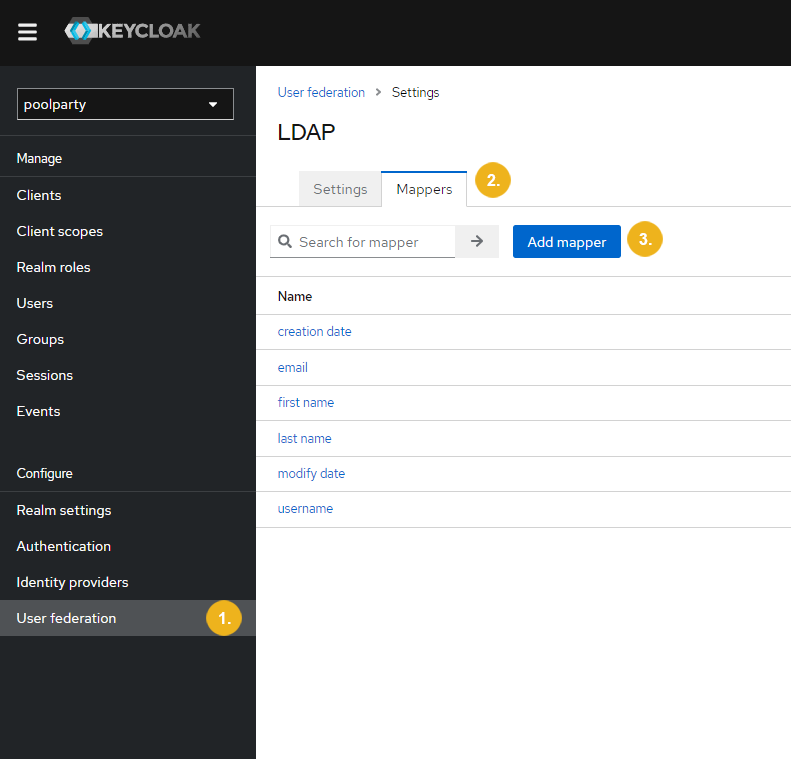
The Add user federation mapper page opens.
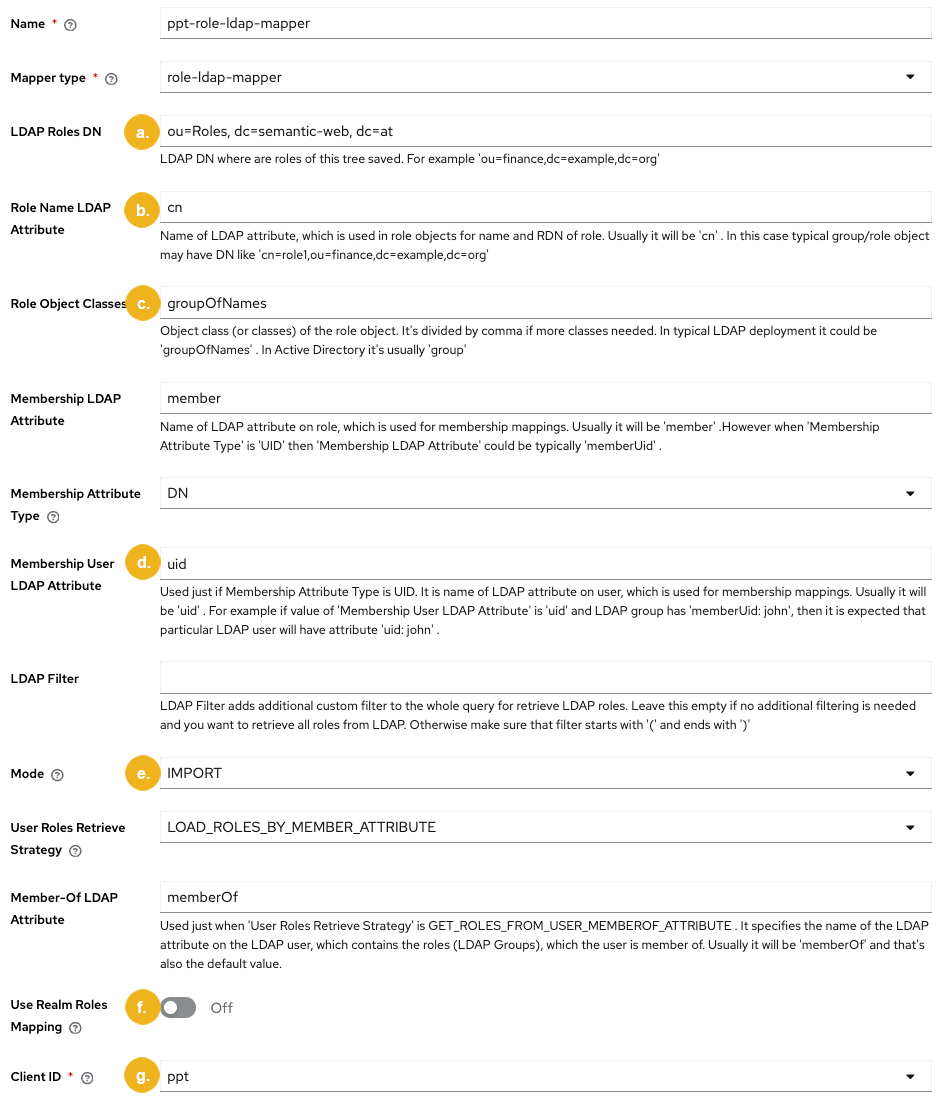
Type in the mapper's name. (e.g.,
ppt-role-ldap-mapper).Select
role-ldap-mapperas the mapper type.Configure the mapper. These are the most important fields:
LDAP Roles DN: must match the base DN for the roles in LDAP (in our case
ou=Roles, dc=semantic-web, dc=at).Role Name LDAP Attribute: must match the role name attribute in LDAP (in our case
cn).Role Object Classes: the object class for roles, usually is
groupOfNames.Membership User LDAP Attribute: must match the LDAP attribute that maps the user's username (in our case
uid).Mode: must be IMPORT.
Use Realm Roles Mapping: Disable this option (toggle OFF).
Client ID: Specify the client ID (e.g.,
ppt).
Tip
For more information on how to fill in a certain field, hold your pointer over the Help icon in the Keycloak UI.
Confirm with Save.
Repeat steps 1-7 twice more, replacing the
Client IDin step 6 withppgsand thenextractor(and adjusting the mapper name accordingly).After initial synchronization, the LDAP users get created in the Graph Modeling User Management with corresponding client roles for ppt, ppgs, and extractor coming from the LDAP server.
In Keycloak, open the user federation you configured for your LDAP server. For more information, refer to Configure LDAP Integration.
Go to the Mappers tab.
Click Add mapper.
The Add user federation mapper page opens.
Type in the mapper's name. (e.g.,
ppt-default-role-ldap-mapper)Select
hardcoded-ldap-role-mapperas the mapper type.Configure the mapper to target the specific client's
Nonerole (e.g.,ppt-None).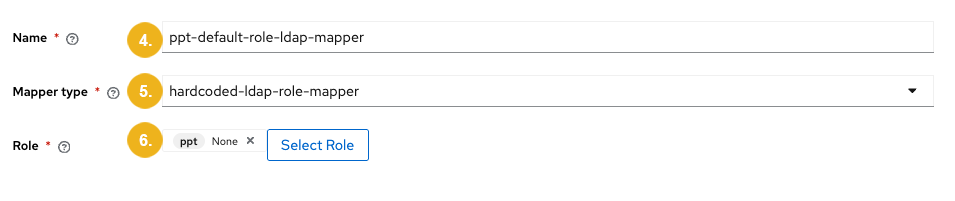
Confirm with Save.
Repeat steps 1-5 twice more for the
ppgsandextractorclients, updating the name and target client ID accordingly.After initial synchronization, the LDAP users get created in the Graph Modeling User Management with the client role None mapped for each relevant client. Those roles do not allow them to use Graph Modeling until a SuperAdmin changes it manually. For more information on how to do so, refer to How to Edit Existing Users
Once a SuperAdmin changes the role of an LDAP user in the Graph Modeling User Management, their user role will not be overwritten by the None user role even if the user will be re-synchronized in Keycloak.
The images below illustrate what roles users will be assigned to.