Search Space Mappings
03/02/2026
After logging in to GraphSearch Admin Board you will see the available search spaces. One of them is automatically selected as it has been set as a default search space.
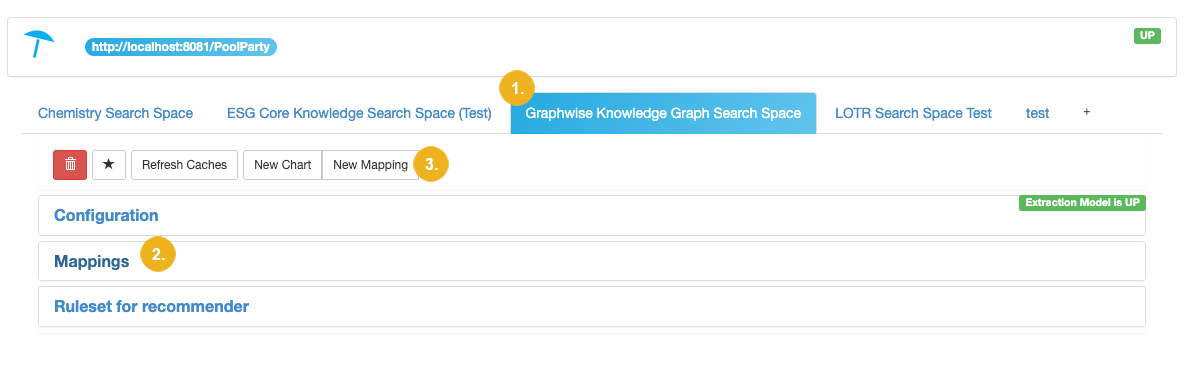
Now select the search space for which you want to specify your mappings. The image above shows the initial view after login with one search space selected (the default search space (1)). The Mapping section (2) is colapsed. If you want to view mappings set for this search space click on Mappings (2) to open the corresponding section and view all existing mappings.
In our example this sections looks like this
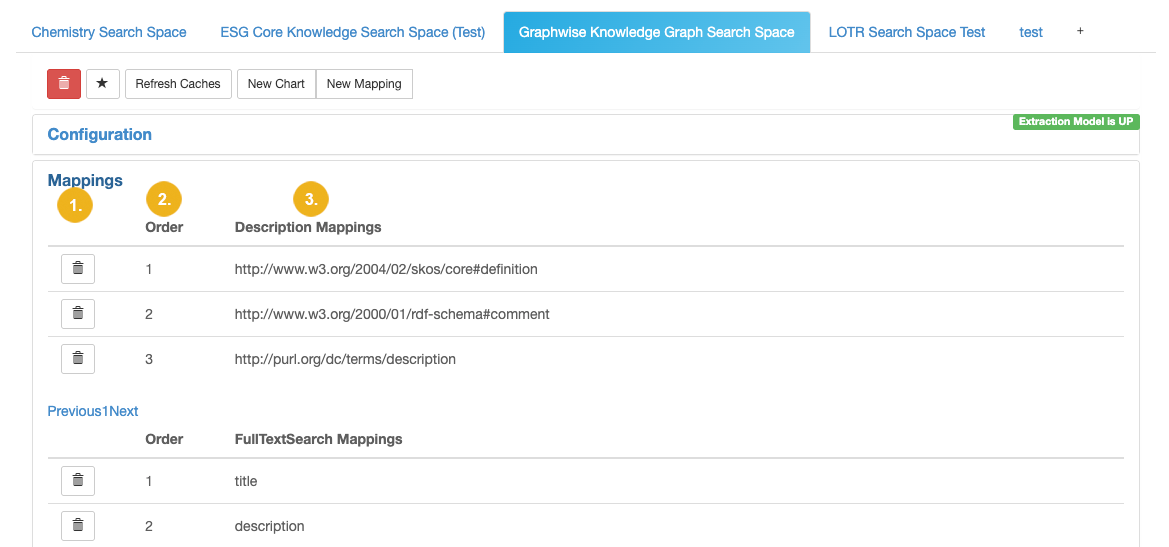
This section contains mappings set for the selected search space. Each mapping is displayed in a tabular view where the first column (1) shows a Bin icon. Click this icon in the row showing a mapping that you want to permanently remove. This mapping will then deleted.
The second column (2) indicates the order in which the mappings are applied and the last one (3) states the mapping type in the header, e.g. Description, Title, etc.
Tip
The Previous1Next links shown after each table with a mapping type allow you to navigate across pages listing such mappings; clicking on 1 opens the first page with mappings.
To create a new mapping log in to the GraphSearch Admin Board. There you see the available search spaces. One of them is automatically selected as it has been set as a default search space.
Now select the search space for which you want to specify your mappings. The image above shows the initial view after login with one search space selected (the default search space (1)). The Mapping section (2) is collapsed. Click on the menu New Mapping (3) to open the New Mapping dialog.
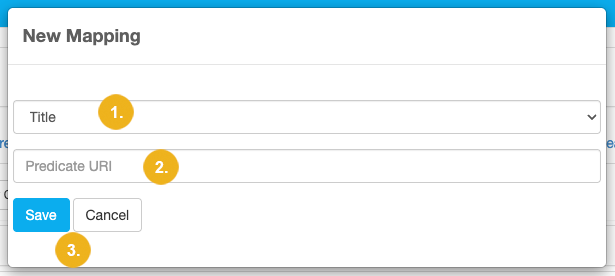
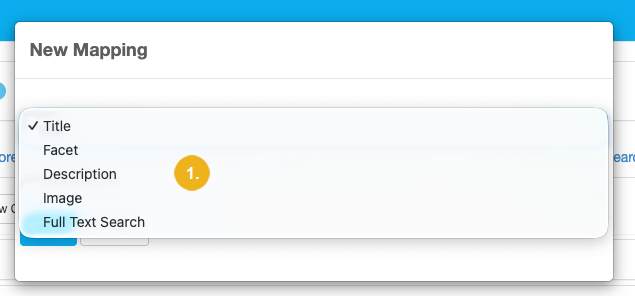
Here you can select the mapping type (1) by clicking the little arrow at the far right of this pulldown. Then specify the Predicate URI (2) for your new mapping. Confirm with a click on the Save (3) button or click Cancel (3) to abort.