Adding and Deleting a Managed Metadata Connection
11/06/2026
If you connect a SharePoint library or list to a Graph Modeling taxonomy or concept scheme, you can use the Connection settings to enable Term Store-based tagging and store tags in the SharePoint Managed Metadata field by connecting to Term Sets in the Term Store.
If a connection already exists, you can use the Connection settings to delete it.
Note
Term Store-based tagging depends on Graph Modeling-based tagging settings and manual tag changes. For more information about the interdependence between Graph Modeling-based and Term Store-based tagging, refer to →Graph Modeling-based vs. Term Store-based Tagging with Graphwise for SharePoint.
Important
To add a new Term Set connection in the Term Store, ensure that the term group is in sync with the Graph Modeling taxonomy used for this connection. Use the Term Store synchronization module to ensure that they are exact copies of each other. GUID synchronization is not required.
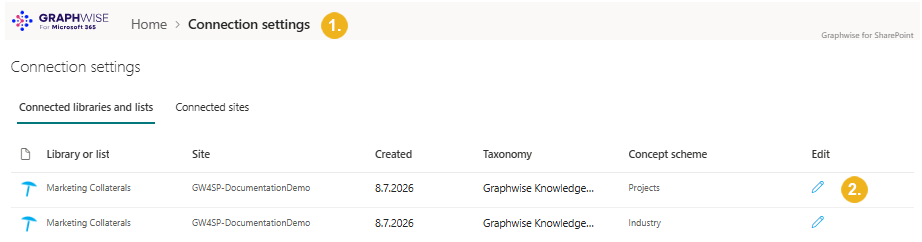
On the Graphwise for SharePoint Administration page, select Connection settings.
On the Connected libraries and lists tab, select the pencil icon in the Edit column of the connection settings that you want to use.
Note
One library or list can connect to multiple Graph Modeling taxonomies and concept schemes. Each connection is represented by a separate entry on the list.
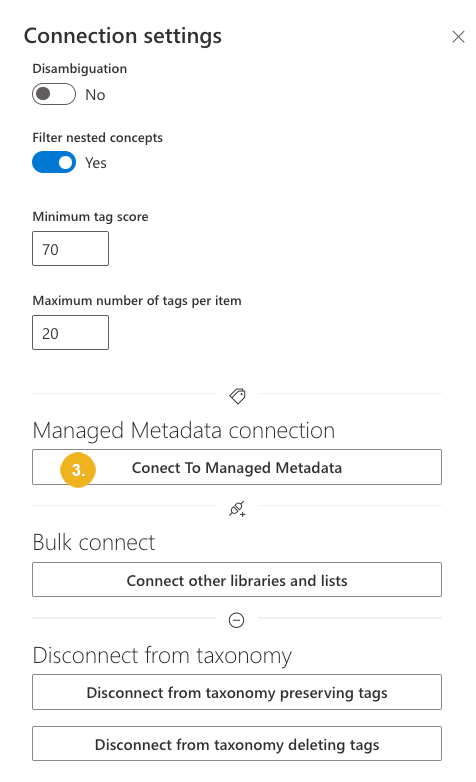
The Connection settings pane opens.
Select Connect to Managed Metadata.
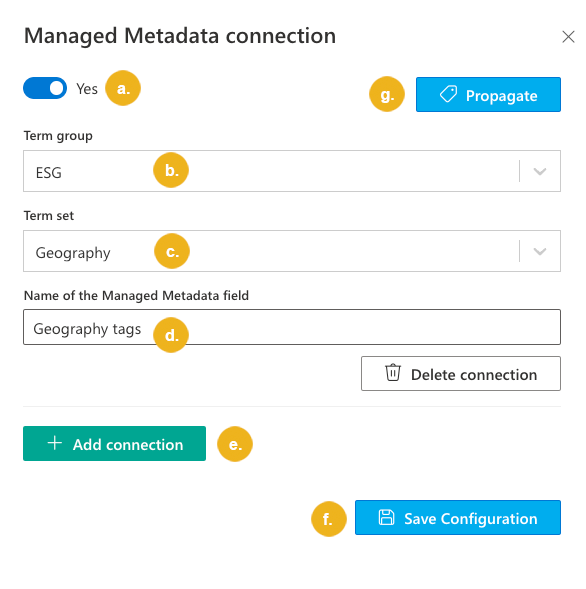
The Managed Metadata connection pane opens.
To add a new managed Metadata connection:
Ensure that the Managed Metadata connection is enabled.
Select a term group containing the Term Set to be used for tagging.
Important
The term group you select should be in sync with the Graph Modeling taxonomy. Use the Term Store synchronization module to ensure that they are exact copies. GUID synchronization is not required.
Select the Term Set to use for tagging. SharePoint does not support tagging using the whole Term Group. If tags belong to multiple concept schemes, decide how to map them, for example by selecting only the most relevant Term Sets or all Term Sets. When mapping all Term Sets, you can use the automated generation mechanism.
Important
If you selected a concept scheme connection in step 2, ensure the Term Set you select is equivalent to that concept scheme.
Enter a name for the new Managed Metadata field that contains tags from this Term Set and will be added to the document library or list.
Note
Using existing metadata columns is not supported.
To connect the library or list to multiple Term Sets, select Add connection and repeat steps a to d.
Confirm with Save Configuration.
To populate the new Managed Metadata column with tags, select Propagate.
Note
Tags used for populating SharePoint Manage Metadata fields are copies of tags used to populate Graphwise for SharePoint tag fields. For more information about the interdependence between Graph Modeling-based and Term Store-based tagging, refer to [→Graph Modeling-based vs. Term Store-based Tagging with Graphwise for SharePoint].
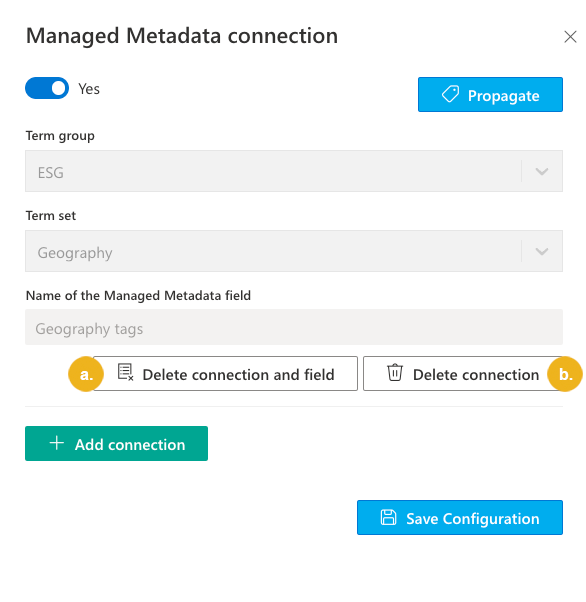
To delete an existing Managed Metadata connection:
Select Delete connection and field to delete both the connection and the Managed Metadata column including all Term Store tags from the list or library.
Select Delete connection to preserve the Managed Metadata column including all Term Store tags in the list or library.
The Managed Metadata column becomes editable and you can manually delete tags or add new ones from the Term Set.
Tip
To delete a connection while preserving the Managed Metadata column and its tags without making them editable, toggle the Managed Metadata connection to No.