Searching for Content
16/06/2026
Important
This feature is currently in beta and will be updated in future releases. We apologize for any inconvience.
Graphwise for SharePoint search provides more precise results and an improved user experience. This article explains how to use Graphwise's search function to obtain more precise search results.
The Graphwise for SharePoint Search allows you to search for documents using concepts from the connected Graph Modeling taxonomy and refine results with additional taxonomy concepts serving as search filters. Additionally, you can discover related content by clicking on one of the tags.
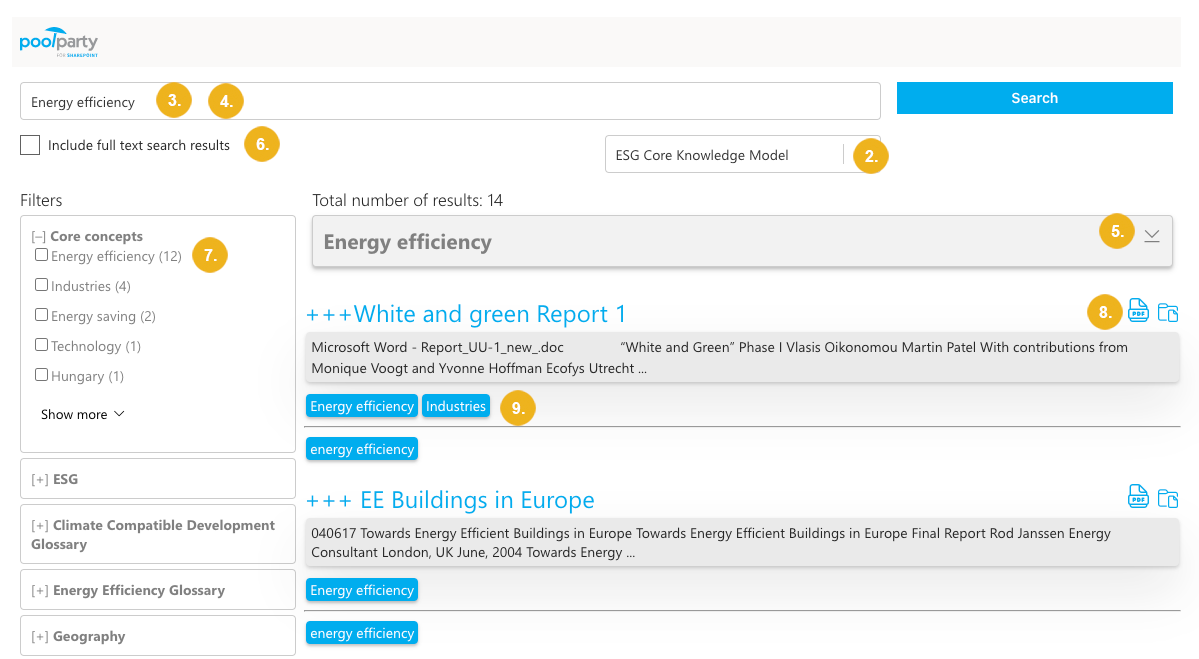 |
Go to the Graphwise for SharePoint Search page.
If enabled, select the Graph Modeling taxonomy (project) containing the concept you want to search for.
Enter the concept name you want to search for.
A list of matching concepts from the connected Graph Modeling taxonomy, including synonym-based matches, appears.
Select the concept from the list of suggestions.
Search results appear below. If the search concept appears in the excerpt, it is shown in italics and highlighted in yellow.
To view concept details (picture, synonyms, definition, broader, narrower, and related concepts, if available), expand the info box.
To also include results found by the SharePoint native search:
Select the Include full text search results checkbox.
Click Search to restart the search.
To refine the search results, select additional concepts to serve as search filters.
Note
The number in brackets next to the concepts indicates the number of items tagged with this concept.
The search results get narrowed down to the items tagged with the concepts selected as search filters.
To access items returned by search:
To open an item, click the file icon.
To open a library or list containing an item found by search, click the folder icon.
Tip
To display the file name, which may be different from the document or list title, hold the pointer over the file icon.
To search for related content, click on one of the tags.
Note
You can click tags both in the results and in the info box. Tags in the info box provide context for the concept (broader, narrower and related concepts), allowing you to explore the graph based on those tags. Broader concepts are more general, narrower concepts are more specific, and related concepts indicate a relation between two concepts.
Tip
Tags are grouped into rows based on their the taxonomy and concept scheme (if enabled). To view the name of the taxonomy and concept scheme a tag belongs to, hover over the tag.