How to View All Tags
15/06/2026
Automatically extracted tags must meet the requirements specified in the Graphwise for SharePoint Administration application to appear in a SharePoint list or library. To display all extracted and manually added tags of a list or library item, do the following:
Go to the site contents page. For more information, refer to the Microsoft SharePoint documentation.
Open the library or list.
Select the item to view all tags assigned to it.
Select ....
Select Manage tags.
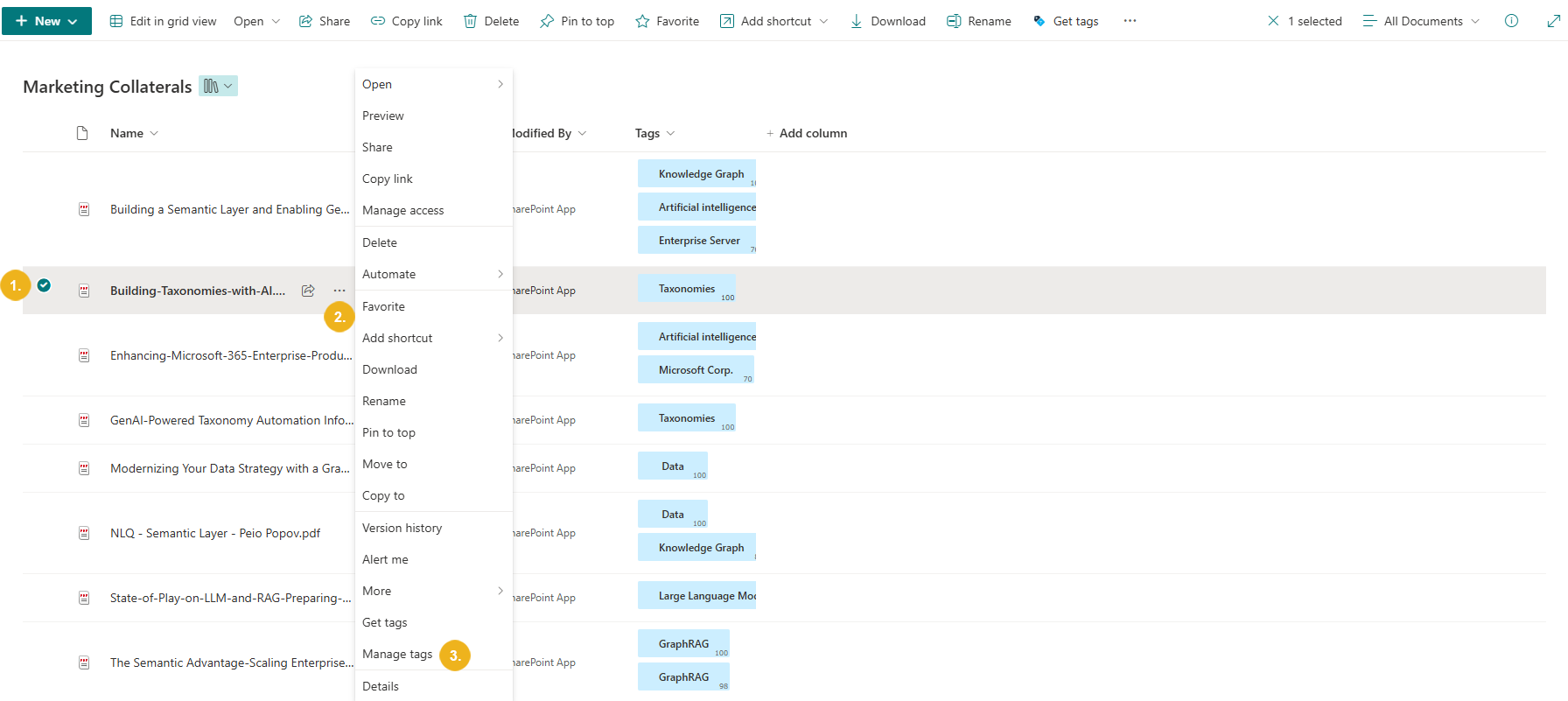
The Manage tags dialog box opens.
If content has been tagged using multiple taxonomies or concept schemes, select the connection to view its tags.
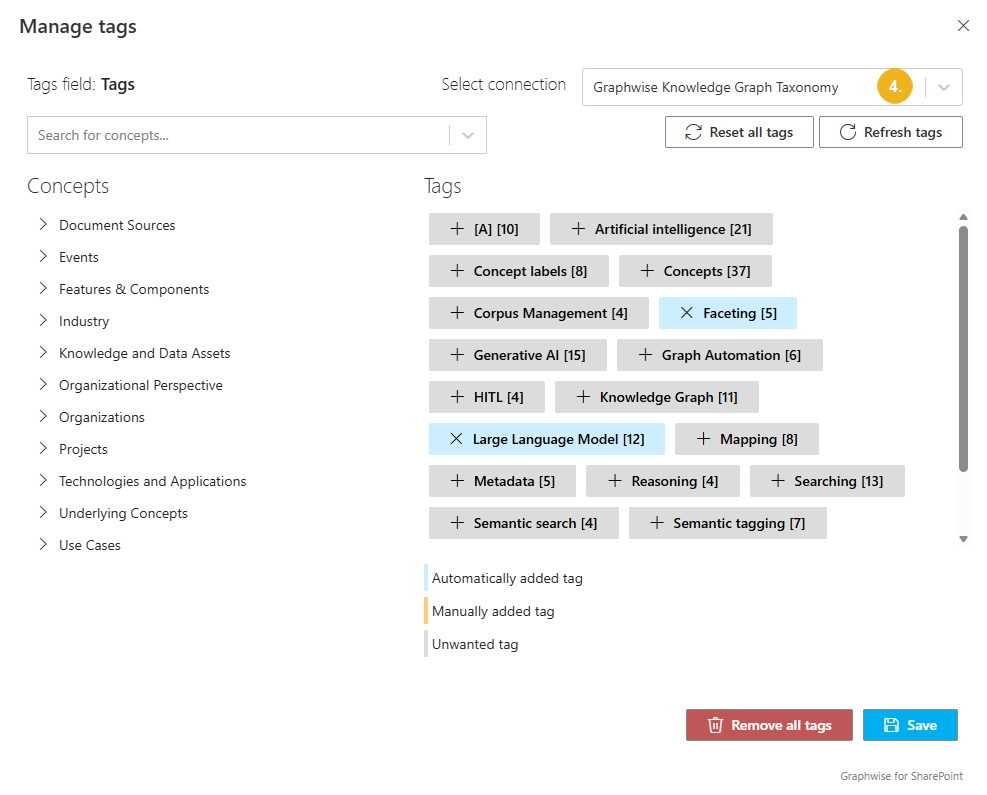
You can view all tags for the selected item and connection.
Automatically extracted tags are shown in blue (if they meet the minimum tag score and have not been marked as unwanted), or in gray (if they do not meet the minimum tag score or have been marked as unwanted). Manually added tags are shown in orange.
The tag score of individual tags is indicated in the square brackets next to them. The higher the number, the more relevant the tag is for the given library or list item.
Note
The minimum tag score is set in the Graphwise for SharePoint Administration application.