How to Delete Tags
16/06/2026
Graphwise for SharePoint allows you to delete all tags of a certain item in bulk or remove individual tags that have been manually added.
Tip
If you do not want to associate an item with a particular tag automatically extracted, you can mark it as unwanted. For more information, refer to How to Refine Automatically Extracted Tags.
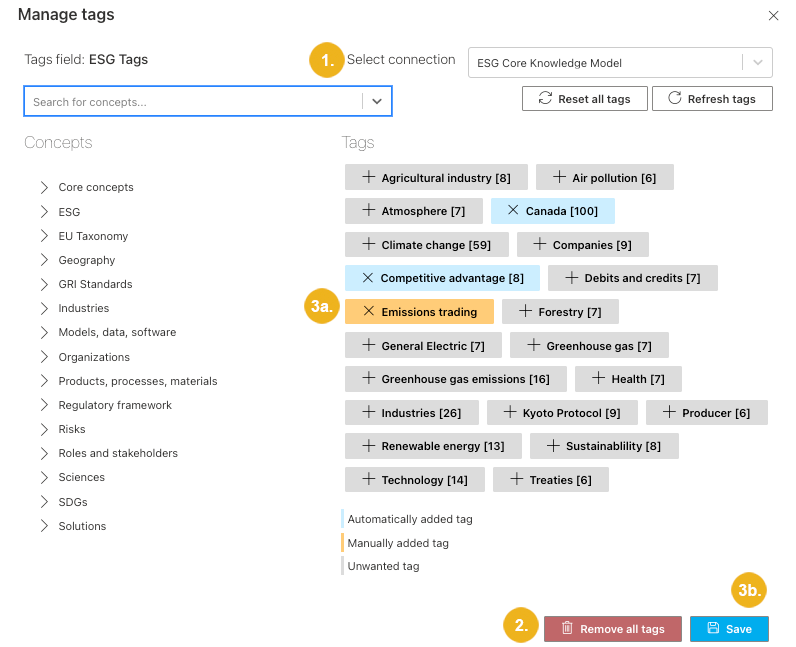 |
Navigate to the Manage tags dialog box. For more information on how to get there, refer to How to View All Tags. If the content has been tagged using multiple taxonomies or concept schemes, select the connection for which you want to delete tags.
To remove all manually or automatically entered tags, select Remove all tags.
To remove a manually added tag:
Click the X next to the tag you want to remove.
Confirm your changes with Save.