Editing Tagging Parameters
11/06/2026
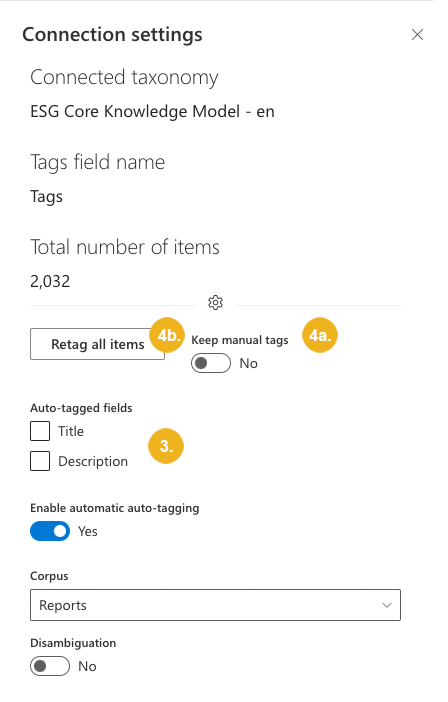
After connecting a library or list to a Graph Modeling taxonomy, you can configure the following tagging parameters: auto-tagged fields, corpus, minimum tag score, and maximum number of tags per document. You can also enable auto-tagging, disambiguation and filtering of nested concepts.
On the Graphwise for SharePoint Administration page, select Connection settings.
On the Connected libraries and lists tab, select the pencil icon in the Edit column for the connection tagging parameters.
Note
You can connect a library or list to multiple Graph Modeling taxonomies and concept schemes. You can also connect the same taxonomy multiple times to the same library or list, each with unique settings. Each connection is listed as a separate entry.
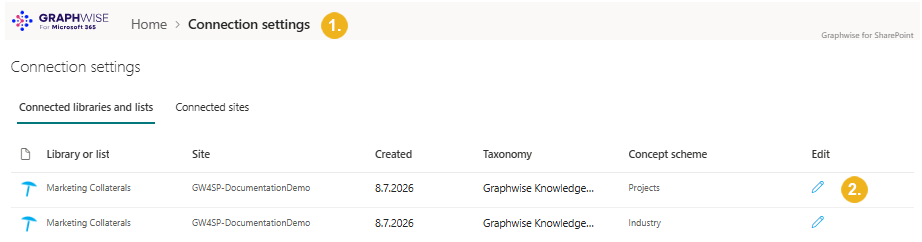
The Connection settings pane opens.
Change the tagging parameters as required. For details about each parameter, refer to Reference: Connection Settings and Details.
Changes save automatically.
To retag items in a connected library or list, use the following settings:
Use the Keep manual tags toggle to specify whether the manual changes made while manually adding tags, refining auto-extracted tags, and deleting tags should be preserved.
Click Retag all items.
A confirmation dialog box opens.
Confirm with Retag all.