Term Store Synchronization Reports and Logs
17/06/2026
Important
This feature is currently in beta and will be updated in future releases. We apologize for any inconvience.
If the Term Store Synchronization module is enabled, the Graphwise for SharePoint Administration application provides access to reports and logs that contain details on the synchronizations between Graph Modeling and Term Store.
Access the Term Store logs:
From the Reports and logs section:
On the Graphwise for SharePoint Administration page, select Reports and logs.
If you have access to both the Term Store Synchronization module and the Tagging module, select the Term Store synchronizations tab.
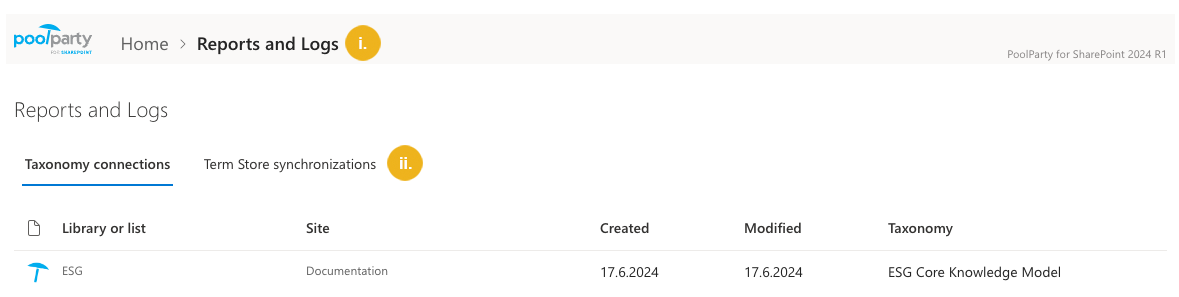
From the Sync with Term Store section:
On the Graphwise for SharePoint Administration page, select Sync with Term Store.
Go to the Synchronization results tab.
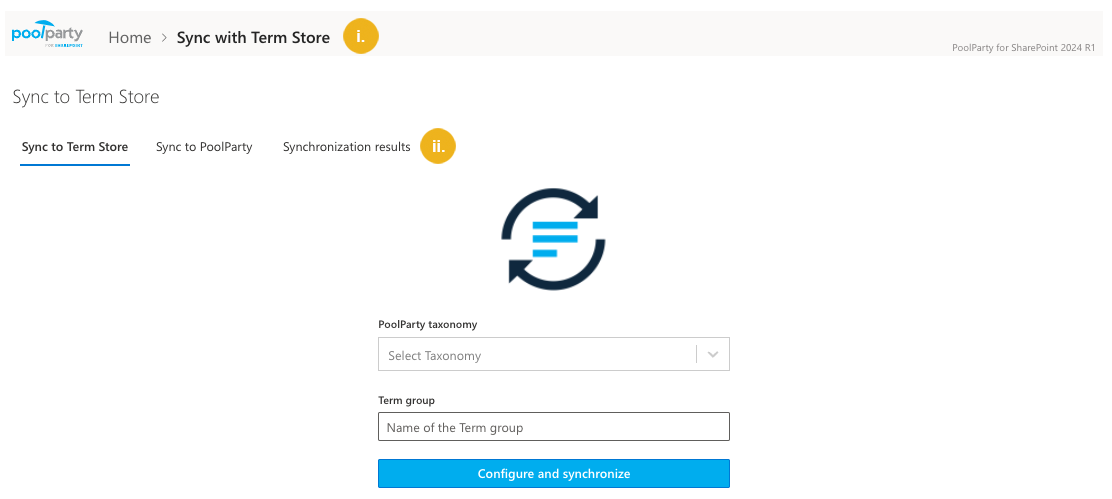
To display the log information on a concept level:
Double-click the row of the synchronization log details that you want to display.
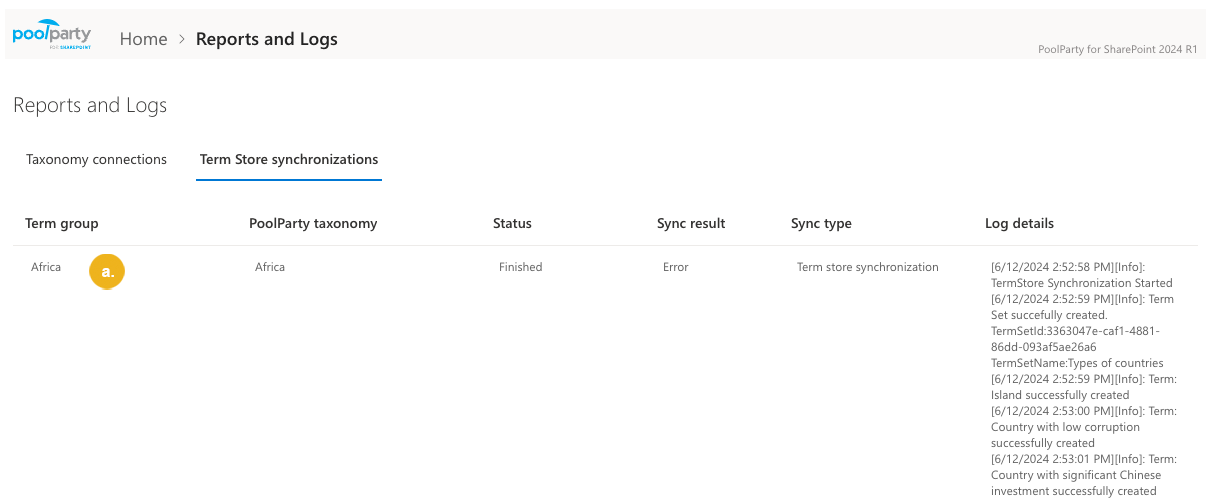
A new browser tab opens.
Double-click the row of the synchronization log details that you want to display.
This opens a new pane.
Select See more to expand the log information.
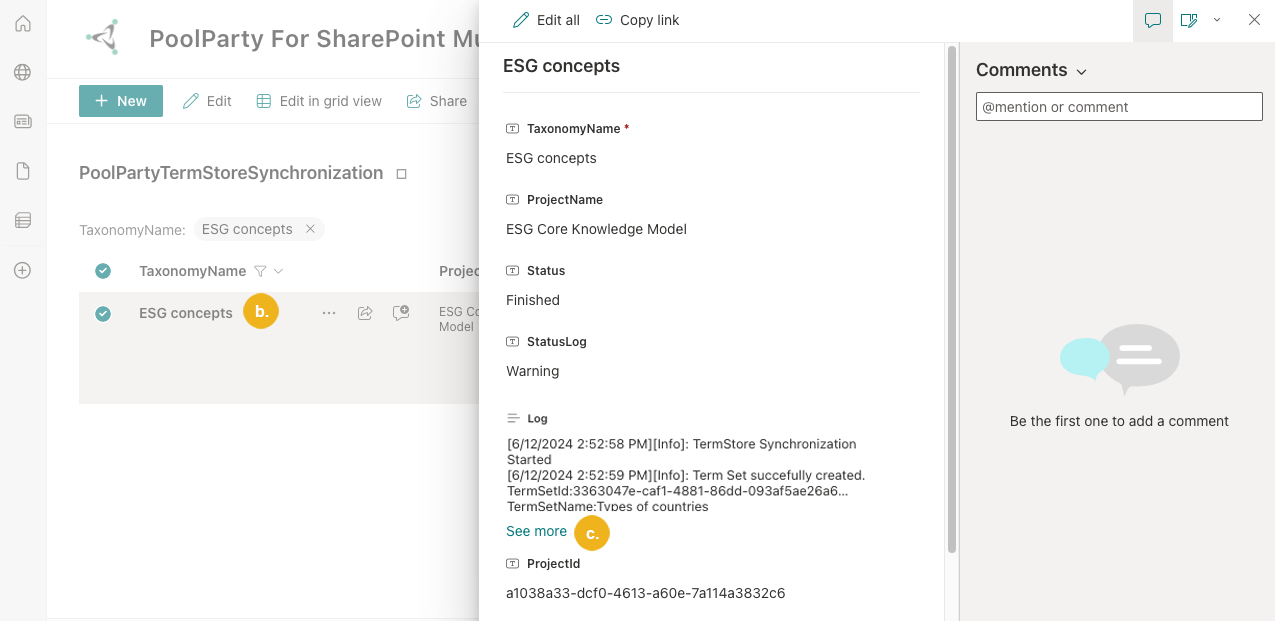
Depending on the configuration, you can either check the synchronization result for each concept or for concepts whose synchronization resulted in :
Information,Warning,Errormessages.
After accessing the Term Store Synchronization reports and logs, you can view all completed and running synchronization processes.
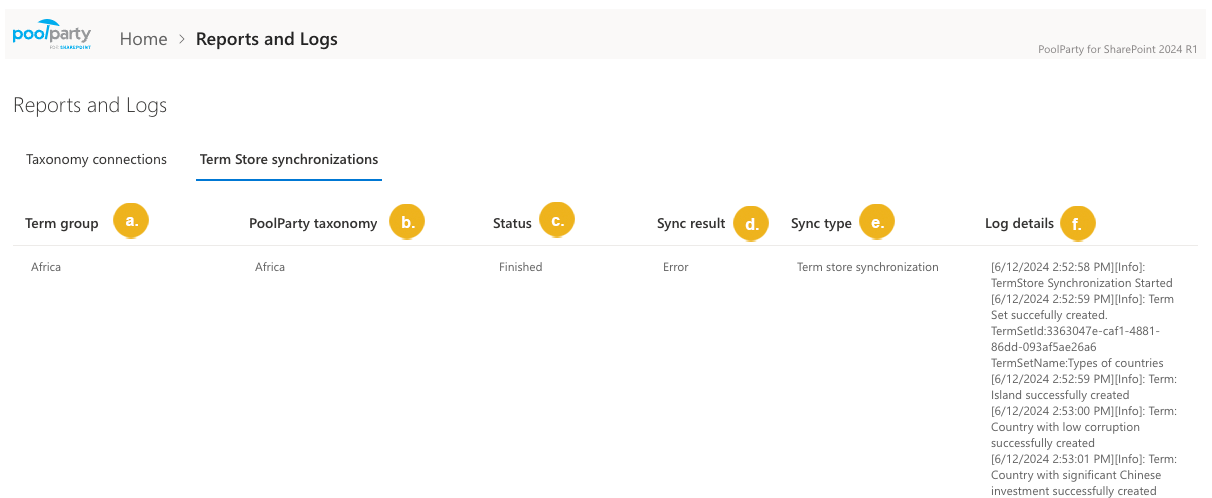
Term group (a) – name of a term group used for synchronization.
Graph Modeling taxonomy (b) – name of the Graph Modeling taxonomy (project) used for synchronization.
Status (c) – status of the synchronization. A synchronization may be in progress or finished.
Note
In some cases, synchronization to the Term Store may fail even if the Status column shows InProgress. If the synchronization is takes too long, check the Term Store to confirm if any terms are still being added. If no terms have been added for more than 20 minutes and the synchronization has already started (some terms have already been synchronized), the application administrator must end the process manually.
InProgress – the synchronization is in progress.
Finished – the synchronization has finished.
Sync result (d) – result of the synchronization. A synchronization may end with a Success, Warning or Error message.
Success – all the concepts were successfully synchronized.
Warning – some concepts were not synchronized due to Term Store or Graph Modeling limitations, for example they exceeded the allowed length of the term description or number of alternative labels.
Error – some concepts were not synchronized due to a significant error.
Sync type (e) – indicates whether this was a synchronization to Term Store or Graph Modeling.
Log details (f) – if enabled, indicates detailed synchronization results for each concept, including a time stamp and severity level. Possible values are:
Information– the synchronization was successful.Warning– the synchronization was partially successful. The log provides further details, including the reason.Error– the synchronization failed. The log provides further details, including the reason.
Note
The Log details column is available only in the Reports and logs section (step 1a above) and is populated only if enabled by an administrator. Logging may be limited to selected severities (
Information,Warning,Error).The log details are truncated (marked with three dots) if they are too long. To view the full details, follow the procedure above (step 2).