Synchronize Graph Modeling Taxonomy to Term Store
17/06/2026
Important
This feature is currently in beta and will be updated in future releases. We apologize for any inconvience.
You can use the Graphwise for SharePoint Administration application to upload a copy of a Graph Modeling taxonomy (project) to the Term Store. You can copy the concepts with their GUIDs (if defined in the termGUID attribute in Graph Modeling) or let the Term Store generate them.
During synchronization, Graphwise for SharePoint creates a new term group in Term Store and populates it with term sets (concept schemes) and terms (concepts), including their names (preferred labels) and synonyms (alternative labels) from a selected Graph Modeling project. If the Graph Modeling projects has a dedicated termGUID attribute configured and populated, you can also import the term GUIDs.
Graph Modeling | Term Store |
|---|---|
Project | Term group |
Concept scheme | Term set |
Concept | Term |
Preferred label | Term name |
Alternative label | Term synonym |
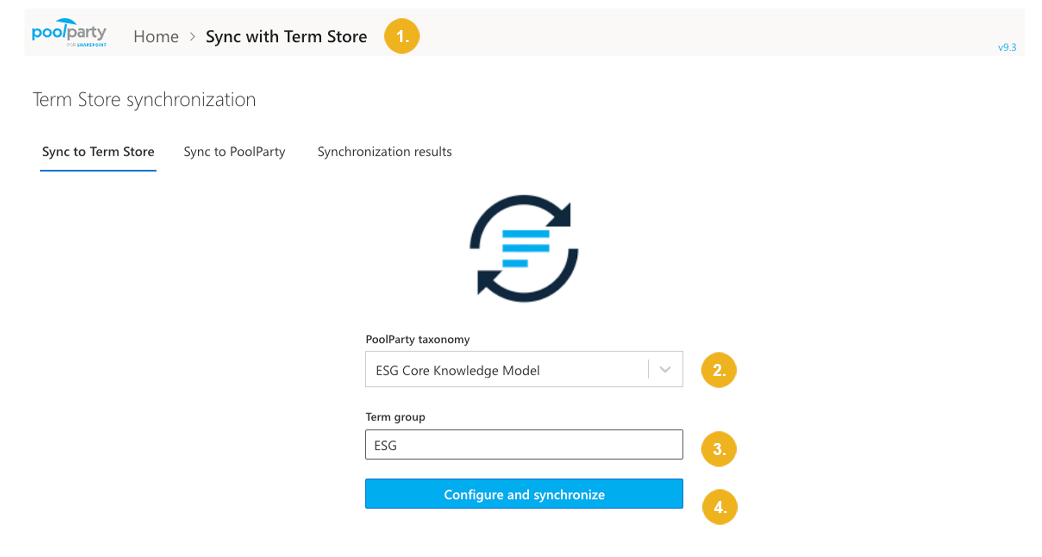
On the Graphwise for SharePoint Administration page, select Sync with Term Store.
On the Sync to Term Store tab, select the Graph Modeling taxonomy you want to synchronize.
Enter a name for the new term group in the Term store and populate it with concepts from the selected taxonomy.
Warning
Do not use this feature to upload taxonomies into existing term groups, as this may disrupt mappings between term GUIDs and concept URIs in Graph Modeling . If you have updated a Graph Modeling taxonomy and you want to reflect those changes in the Term store, update the Graph Modeling taxonomy in Term store.
Confirm with Configure and synchronize.
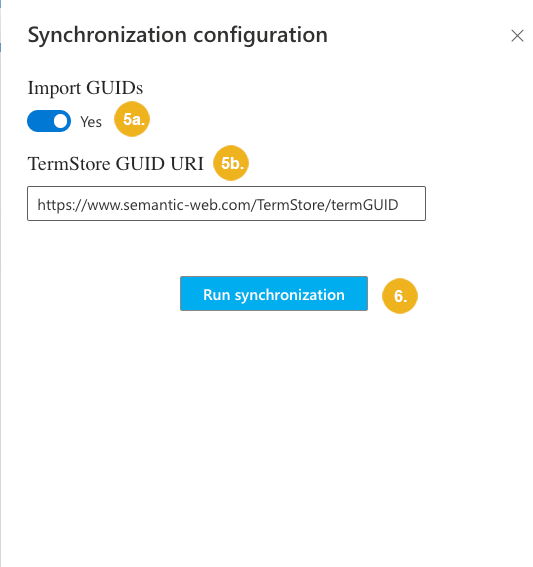
To import concepts together with their GUIDs that are stored in Graph Modeling in a dedicated
termGUIDattribute:Note
If you do not import GUIDs from Graph Modeling, Term Store will generate them automatically.
Select Import GUIDs.
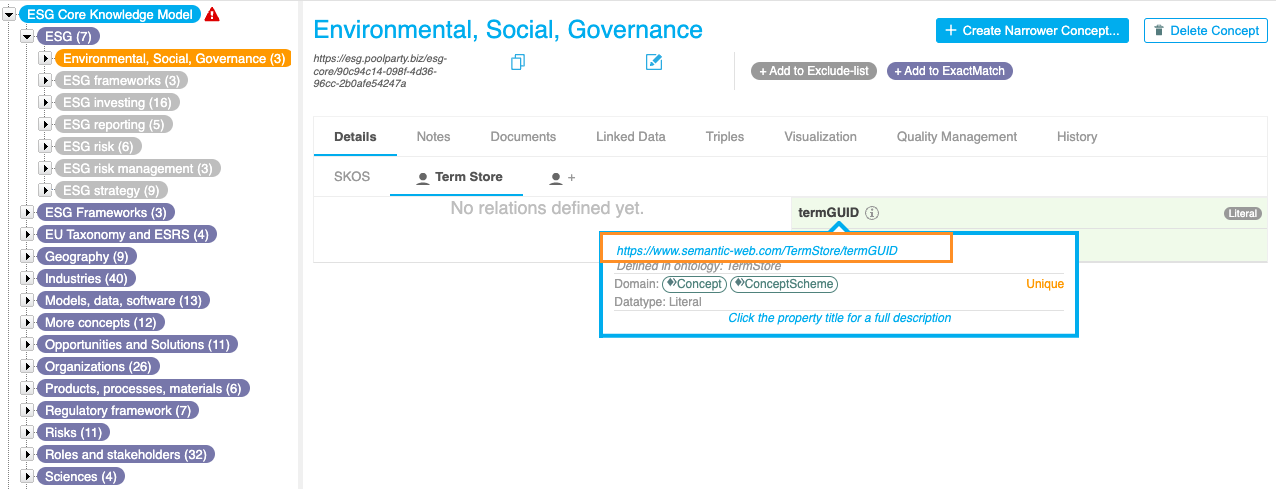
Specify the URI of the
termGUIDattribute in Graph Modeling or keep the default one if you used the template ontology.You can find the URI in the Graph Modeling UI by selecting the concept in the hierarchy tree. The URI is displayed in the Details View on the right, directly below the concept name.
To start synchronization, select Run synchronization.
Depending on the size of the taxonomy, the synchronization may take a significant amount of time to complete. You can safely navigate away or close the browser window while it is in progress.
You can check the status of the synchronization on the Synchronization results tab or in the Term store synchronization logs. If it ended with an error or warning, you can re-run the synchronization from the Synchronization results tab.
Tip
For more information on how to access, delete, and interpret complete synchronization logs, refer to Term Store Synchronization Reports and Logs.
Note
If you make any changes to the taxonomy in Graph Modeling and want to reflect those changes in the term group in Term store, you need to update the taxonomy on the Synchronization results tab.