Asking Questions - Where to Start
31/08/2026
GraphRAG version 1.3
After logging in to the GraphRAG app the UI is comprised of these areas:
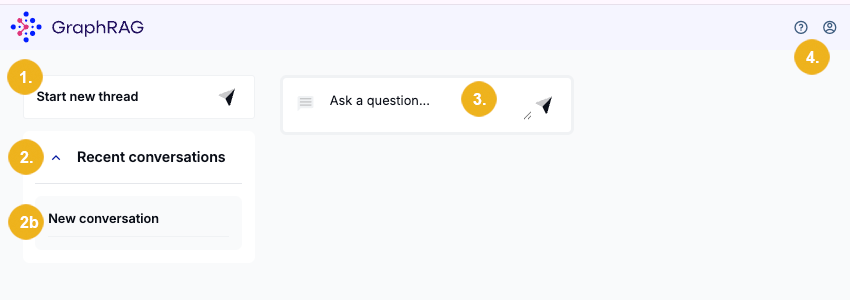
Start new thread (1) clears the current conversation and opens a new chat session.
Recent conversations (2) Click the arrow on the left to expand the Recent Conversations panel, where you can view and manage previously saved conversations. Conversations titles are automatically generated based on the initial prompts used in each chat. You can reopen any saved conversations to continue working from where you left off. This panel also contains New conversation button (2a) which has the same function as the Start new thread button (1) above.
Note
Clicking on any previous conversation will load it into the chat panel.
If the chat panel contains an answer to a different query this operation will replace what is shown there with the content of the selected previous conversation.
Ask a question (3) - Enter your question in the prompt field and start the conversation by clicking the arrow or pressing Enter. The conversation is displayed in the chat panel. Once the application returns a response, the conversation is automatically added to the top of the Recent conversations list, where it can be selected and reopened at any time.
The right hand (4) area has two functions. While the system is generating an answer to your question you will see messages informing you in real-time how the system passes through the individual steps of answer generation.
After the answer is shown in the chat panel you can view the Concept details of any concept highlighted in the chat panel (3). To view these details you only need to click on any of the highlighted concepts.
After logging in to the GraphRAG app you can immediately start entering your question in the input field located in the chat panel.
To submit your question to the system simply enter your query in the dedicated input field (3) and either press Enter or click on the arrow shown at the right end of this field.
Tip
The system automatically ignores empty messages such as accidental spaces or blank entries to keep your chat history clean.
Note
The input field (3) can handle questions which are up to 1,000 characters long.
If the GraphRAG app cannot find an answer to your question you will see an answer looking like this (1):
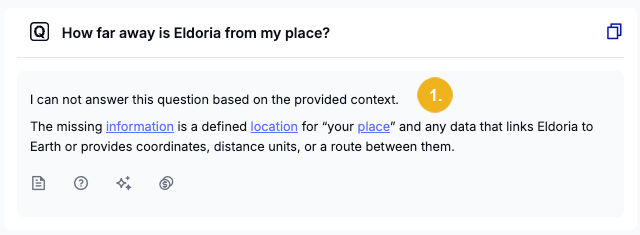
informing you which crucial details are missing and hence preventing the system from formulating a meaningful answer.