How to Install Graphwise for SharePoint Administration
22/06/2026
This section describes how to install the Graphwise for SharePoint Administration application on a SharePoint page. Expand the sections below to learn the steps for installation.
Note
For an overview of the whole installation and configuration process of Graphwise for SharePoint, refer to Installation and Configuration Process.
The following steps explain how to use system lists.
Create the required system lists (
GraphwiseforSharePointConfiguration,GraphwiseforSharePointLogs,GraphwiseforSharePointQueue, andGraphwiseTermStoreSynchronization) on the site for the Graphwise for SharePoint Administration application.Run the
GraphwiseforSharePointStructureScript.ps1script from the deployment package.When prompted, sign in to SharePoint.
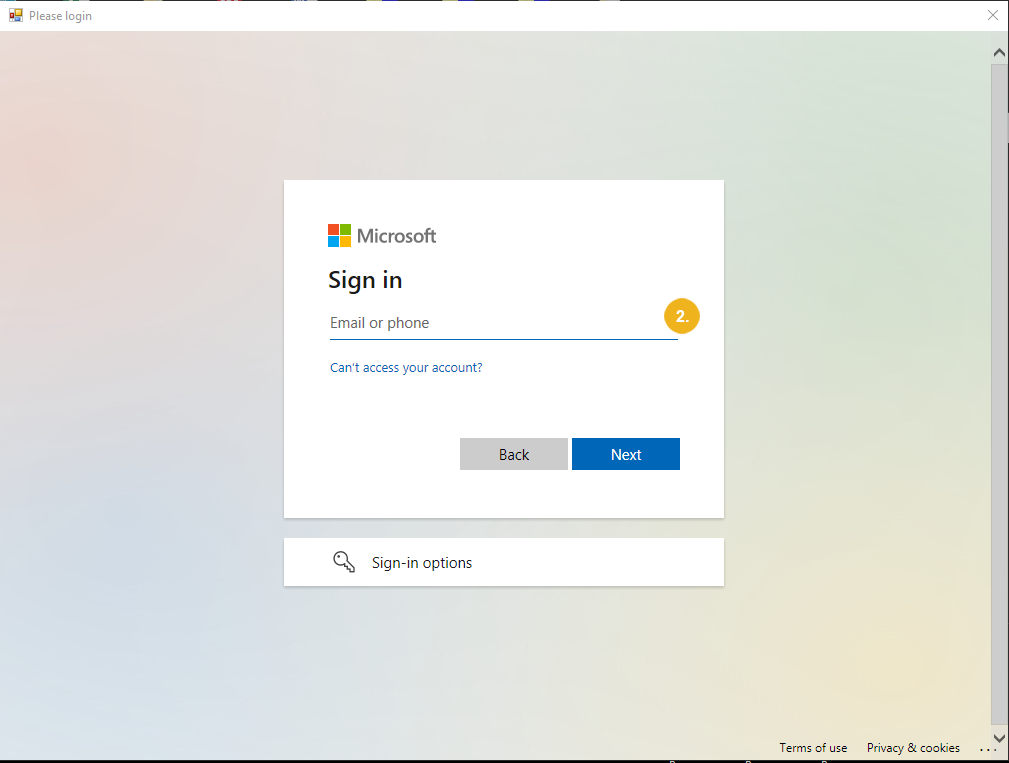
When prompted, specify the URL of the site that you have created for the Graphwise for SharePoint Administration application.
After everything is deployed, five new lists (
GraphwiseforSharePointConfiguration,GraphwiseforSharePointLogs,GraphwiseforSharePointQueue, andGraphwiseTermStoreSynchronization) appear in the site contents.