Follow-up Questions
31/08/2026
GraphRAG version 1.3
The GraphRAG app offers two ways how you can ask a follow up question:
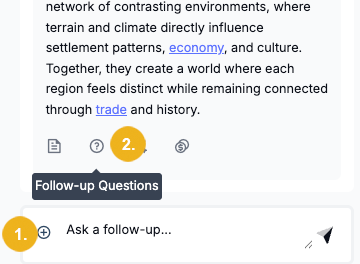
enter it in the dedicated field (1)
select one of the auto-generated follow-up questions which can be displayed with a click on the corresponding icon in the Insights Panel (2)
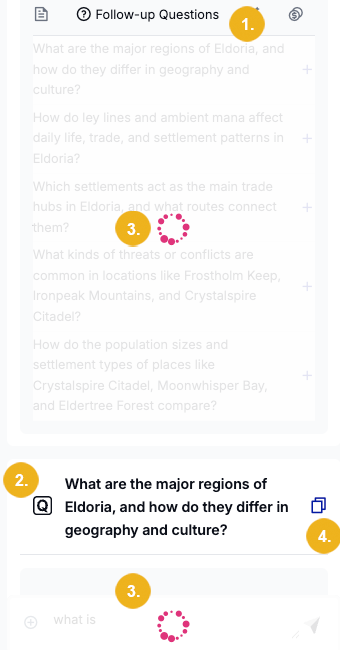
The answer generation of the follow-up question runs through the same steps as the generation of the response to the initial question. A moving round circle is displayed until all steps have been completed and the answer has been displayed in the chat panel.
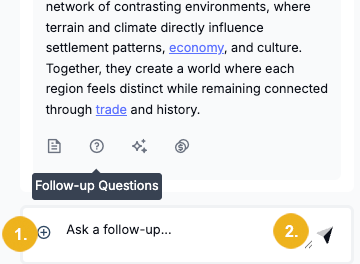
Entering your own follow-up question
Enter a follow-up question which may be of interest in the dedicated field (1) shown below the answer and the Insights Panel and click on the arrow at the end of this field (2) or press Enter to have the app generate the response to it.
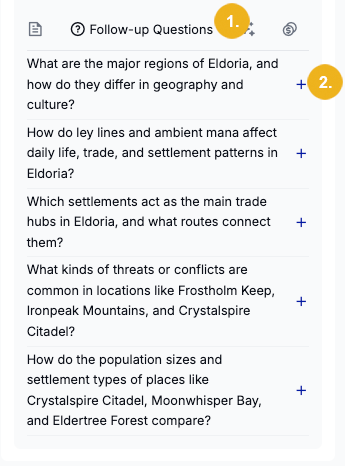
Selecting an auto-generated follow-up question
Click on the Follow-up Questions icon (1) on the Insights Panel to display follow-up questions suggested by the GraphRAG app, then select the desired one and click on it or the trailing + symbol (2) to have the app generate the response to it.
The screenshot below illustrates this for a selected suggested follow-up question (1) which then appears in the Ask a follow-up... field (2) and the red moving circle (3) is shown both over the suggested auto-generated follow-up questions provided by the system and below the selected follow-up question displayed in the field (2).
Tip
To copy the follow-up question click on the two-page icon (4) located at the end of the field displaying the selected question.
If the GraphRAG app cannot find an answer to your question you will see an answer looking like this (1):
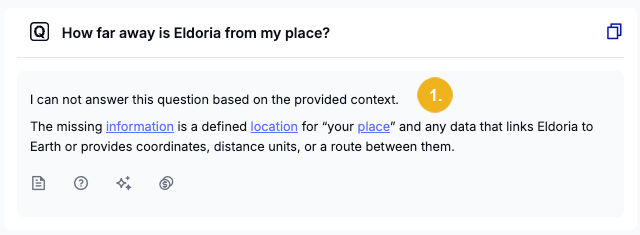
informing you which crucial details are missing and hence preventing the system from formulating a meaningful answer.