Your First Question
31/08/2026
GraphRAG version 1.3
This article describes how to use the chat panel and the right-hand panel illustrated by the example below.
In our example we will use the Complete Taxonomy of the Eldoria Fantasy World to walk you through how to use the app. We will start with our first question What is Eldoria:
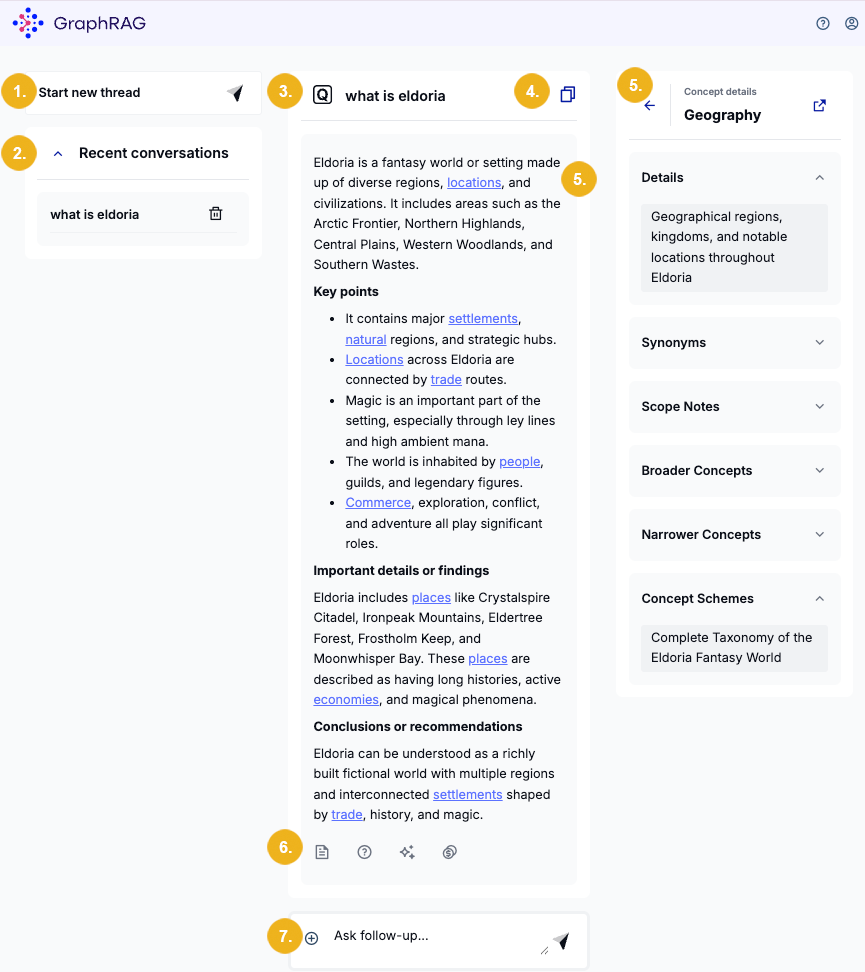
After logging in we enter our first question What is Eldoria in the input field (4) located in the chat panel of the app. Then we can either click on the arrow at the right end of this field or press Enter to trigger the answer generation.
Tip
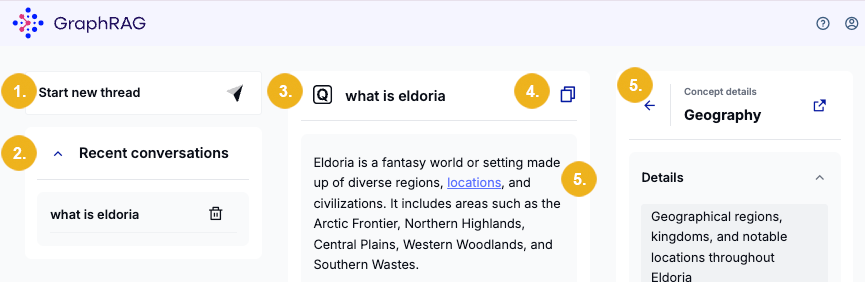
If you want to ask a different question, click the Start new thread (1) on the left. The chat panel will be emptied and you can ask a new question.
If you want to recall any recent conversation, use Recent conversations (2) and select the conversation you want to see again. In this case the chat panel will show all information originally generated when the selected question was entered.
Tip
Click the double page icon (4) if you want to copy your question to clipboard.
The system starts working which is indicated by a rotating red circle in the chat panel and specific steps the app runs through determining the answer shown on the right.
These steps include:
applying the input guardrails
preparation of the context
analysis of important concepts and topics
document and hybrid search
retrieving relevant data from the graph
applying the output guardrails
extracting concepts from the generated answer.
The app then displays the generated answer in the chat panel including the Key points, Important details or findings and Conclusions or recommendations sections.
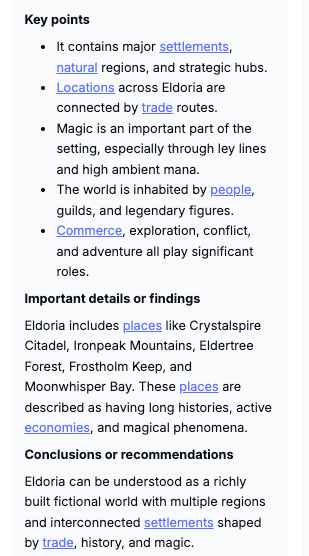
Identified concepts are highlighted as links (5) and can be clicked to show the Concept details panel (5) on the right.
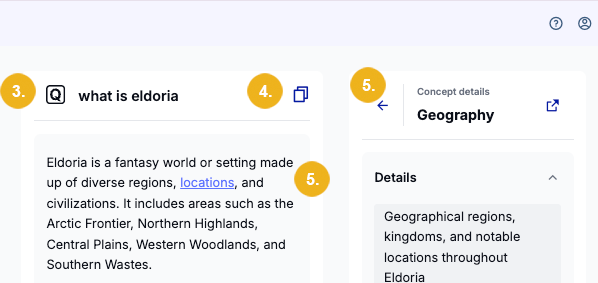
The information shown in the Concept details panel (5) is based on your company's knowledge base. This panel contains the following drop-downs:
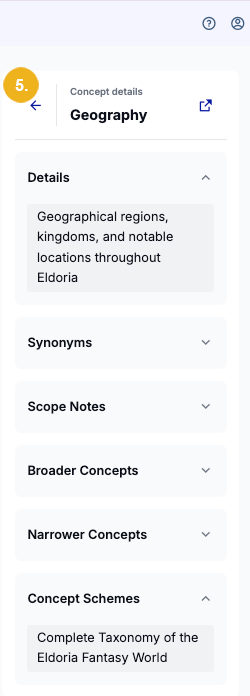
Details - further information describing the selected concept
Synonyms of the selected concept
Scope Notes providing more details
Broader Concepts and Narrower Concepts where applicable
Concept Schemes - the name of the applied taxonomy
Tip
When you click a highlighted concept in the chat panel only the Details drop-down will be open showing the relevant information. Click the trailing arrow pointing up to close any of the drop-downs respectively pointing down to open any of them.
If you want to see Concept details of another highlighted concept simply click on it.
If you want to close the Concept details panel click the arrow pointing towards the chat panel shown on the very top left corner of this panel.
At the bottom of the central area below the answer you see four icons (6),

clicking them will open the following
Sources - a list containing the URLs of the sources used to generate the answer
Follow-up Questions showing the auto-generated possible follow-up questions based on your original input and the generated answer
Explanation - information providing details of individual steps during answer generation
Token usage informing you how many tokens were used in every individual answer generation step and a total number of token consumed for the answer generation
You can of course also enter any follow-up questions which might be of interest. Use the input field (7) located at the very bottom of the chat panel.

If the GraphRAG app cannot find an answer to your question you will see an answer looking like this (1):
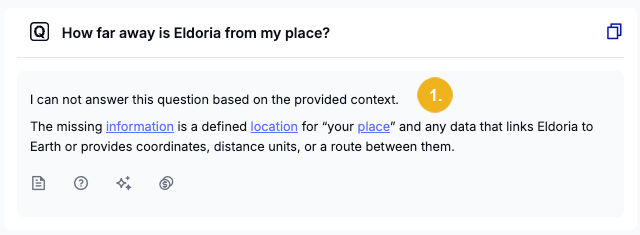
informing you which crucial details are missing and hence preventing the system from formulating a meaningful answer.