The Recent Conversations Panel
31/08/2026
GraphRAG version 1.3
This panel (1) lists all conversations (3, 3a) you have initiated over time provided that you have not deleted any of them. At the top of this list there is a button New conversation (2). Click this button to clear the chat panel and launch a new chat.
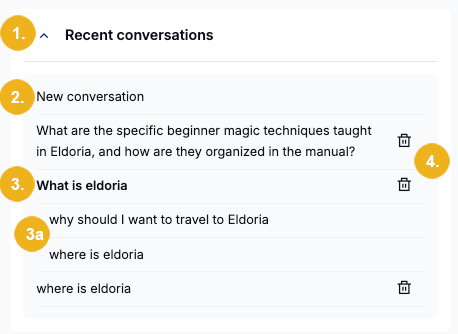
The system records all questions (3) you entered in the central chat panel. It also records any raised follow-up questions (3a) which then appear nested within the corresponding initial question of each chat. At the end of each initial question there is a bin (4) icon which can be used to delete any of the list items no longer of interest.
To view any previous conversation select the desired chat from list shown on the Recent conversations (1) panel. This list contains all recorded chats (3) and if applicable nested follow-up questions (3b).
Tip
The first entry on Recent conversations list is the New conversation button (2) which will clear the chat panel and launch a new conversation.
To load any previous chat into the central area:
Select the chat you want to view (3).
Tip
If the selected conversation contains any follow-up question these will be displayed as nested list items (3a) for the selected chat shown on this list.
Click on the selected initial question or pick a follow-up question depending on whether you want to see the conversation from the beginning or you want to have it displayed with focus on the answer to the picked follow-up question.
The selected conversation is then loaded in the chat panel area replacing whatever might have been previously displayed there.
Tip
If you select a follow-up question from the list, then this question and its answer will be shown and you can scroll up to the initial question or down to any subsequent follow-up question.
If you select an initial question from the list, then the complete conversation from the very beginning will be displayed. You can scroll through the entire conversation.
It is also possible to ask a new follow-up question after having reopened the selected chat from the list.
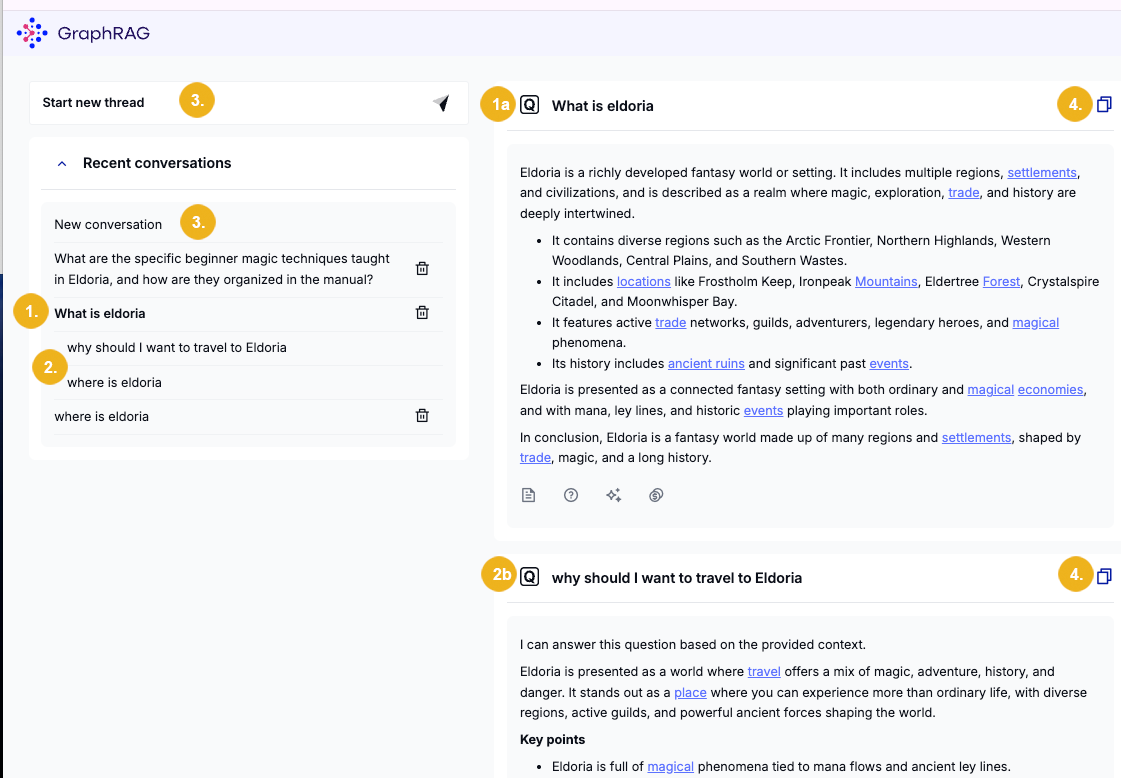
In our example we selected the initial question (1) which loaded the corresponding conversation into the chat panel (1a).
Just below the Insights Panel you see the first (2b) of the two follow-up questions (2).
Tip
You can copy any of the questions shown in the chat panel with a click on the two-page (4) icon.
To start a new chat either use the Start new thread (3) button in the top left corner of the screen or the New conversation (3) button shown just above the list of recorded previous conversations.
Note
All features available in the chat panel are available as soon as any previously generated chat has been selected from the history and loaded.
Sometimes previous conversations are no longer of interest and you may want to remove them from the history.
Note
Please note that the bin (1) icon is only shown for the initial question of each recorded conversation. Any linked (nested) follow-up question (4) cannot be individually deleted.
Deleting a conversation record from the list means that you will also delete any nested follow-up questions asked during this particular chat.
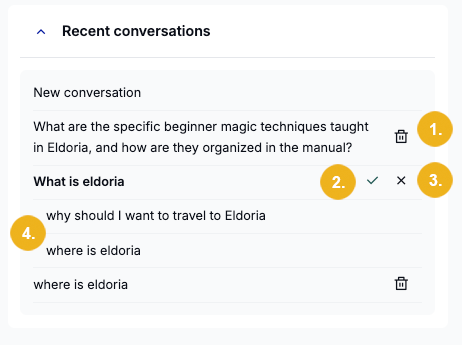
If you want to remove a previous chat from the list of Recent conversations proceed as follows:
Select the conversation to be removed (2) with a click on the bin icon.
The selected conversation is shown in bold and in place of the bin icon you see two new icons: a tick (2) and and x (3).
To permanently delete a chat from the history confirm with a click on the tick (2).
Caution
The selected previous conversation will be permanently deleted and cannot be restored.
To abort this operation click on the x icon.