GW4Copilot Agent Topics
21/07/2026
Connectors 1.0 // GW4M365
Note
This functionality is currently in beta and will be included in a future release.
Agent topics contain the logic that drives the agent execution and user interactions. An Agent can contain up to 250 different topics. Topics can be triggered in different ways, depending on the purpose of the trigger. In our agent, we use either phrase triggered topics or redirected to topics.
Expand the following sections to learn more about phrase-triggered topics and redirected-to topics.
Phrase triggered topics are activated when a user enters a predefined phrase in a conversation with a copilot agent. Each topic can contain up to 200 trigger phrases. When the user's input matches a trigger phrase, the copilot routes the conversation to the corresponding topic and continues the interaction.
Note
If multiple topics match a user's input, Copilot Studio prompts the user to choose a topic. This behavior should be avoided as it can interrupt the conversation and lead to an inconsistent user experience. Refine trigger phrases to minimize overlap between topics and ensure that each user intent maps to a single topic.
Redirected topics are supporting topics that help organize agent functionality and conversation flow into smaller, focused components. These topics are called from another topic to handle a specific subtask required to complete the parent topic. Redirected topics can accept input parameters from the parent topic and return output parameters to it.
The GW4Copilot agent is organized into a series of topics that guides the user through taxonomy selection, content tagging, document search, and document analysis. This section explains the function of each topic in the Copilot agent. Expand a topic to view its details.
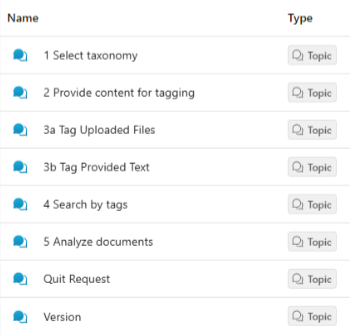
This topic serves as the entry point for the GW4Copilot agent. Users start the interaction by entering one of the predefined trigger phrases. This topic retrieves a list of taxonomies available to the user using a Power Automate flow and custom connector. After the user selects a taxonomy, the conversation is redirected to the next topic to continue the flow.
This topic prompts the user to provide content to be analyzed and tagged by the Graph Modeling server. Users can either upload a file or submit plain text, such as content copied from an email or document. Each option is handled by a separate supporting topic.
After the content is processed, the generated tags are returned to this topic. The tags are then consolidated, duplicates are removed, and the remaining tags are sorted by the relevance score returned by the Graph Modeling server. The result is unified list of unique tags ordered from the highest to the lowest relevance score. The conversation then continues to the 4 Search by tags topic.
This topic prompts the user to upload files. Once a user uploads a file, the topic sends it to a Power Automate flow. The flow encodes the file content in Base64 encoding and submits it to the Graph Modeling server. The Graph Modeling server analyzes the content and returns the generated tags. Tags are then returned to the Provide content for tagging topic for further processing.
This topic prompts the user to paste text for tagging. Once a user pastes the text, the content is sent to a Power Automate flow. The flow encodes the content in Base64 encoding and submits it to the Graph Modeling server and gets tags from the text content. Tags are then returned to the Provide content for tagging topic for further processing.
This topic displays the retrieved tags as a list of selectable checkboxes. Users can select one or more tags to search for related documents. After the user selects the desired tags, the topic calls a Power Automate flow.
The flow uses a custom connector to invoke an Azure Function, which queries the SharePoint Search REST API for documents that have the selected tags assigned to them. The search is limited to the selected taxonomy, ensuring that the returning documents are relevant to both the submitted content and the chosen taxonomy.
When no matching documents are found the user can:
Select different tags and run the search again.
Select a different taxonomy.
End the conversation.
This topic shows documents found by SharePoint search and lets the user select the documents to serve as the knowledge base for Copilot AI to learn from and then answer the question asked by the user. First the user selects up to four documents from the list by using the available checkboxes.
The topic then prompts the user to enter a question to be answered based on the content of the selected documents. The user's question and the selected documents are passed to the next step in the workflow, where the document content is used to generate a response. After the answer is provided, the user has the following options to continue with this conversation:
Ask another question from the same document: This allows the user to ask another question using the same knowledge base as before.
Select another document for questions: The user can select different documents from the same document list as before to use as the knowledge base for the next question.
Select new tags to search for documents: From the existing list of tags, select new tags and then perform the subsequent search to get new relevant documents.
Provide new content to analyze for tags: The user can upload new content for tagging, but uses the same taxonomy they selected at the beginning.
Select new taxonomy project for tagging: This allows the user to start from the beginning by selecting a new taxonomy to use as a base for all tagging and following files search.
That would be all: This allows the user to finish the interaction and quit the whole conversation, all variables and conversation content is also cleared.
This topic allows the user to quit the whole conversation directly or to restart it. When any of the following phrases are entered, the agent displays three options:
Quit the conversation: This stops the current flow and ends the conversation without any further interaction from the agent.
Restart the conversation: This restarts the conversation and returns the conversation back to the taxonomy selection by displaying a list of available taxonomies.
Cancel and continue with conversation: If the user wants to continue the conversation after requesting to cancel, this option will instead take the user back to the same point they were at before they requested to quit.
This topic is used for debugging purposes. Enter the phrase version to display the current agent version and developer notes for troubleshooting and version verification.