How Answers are Phrased & Presented
31/08/2026
GraphRAG version 1.3
After generation an answer appears just underneath the raised question in the chat panel. The GraphRAG app organizes and phrases the answers to make them clear and easy to read.
All answers are clearly formatted with key elements including titles and summaries. Lists are represented using bulleted points (2). The headings (1) of each answer sub-section are shown in bold. Any identified concepts are represented as links (3) which then open the corresponding verified details on the right-hand panel.
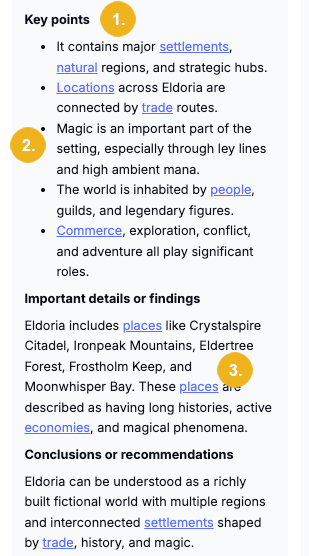
Very long answers will scroll within the chat panel, preventing text from running off the screen or breaking the layout.
Every answer includes a references section at the bottom listing the document IDs used to find the information allowing you to easily verify the sources.
If your question violates a corporate safety policy, the system will show a simple, helpful rejection message instead of a technical error.
If the app cannot find sufficient context or the question is too generic the answer from the GraphRAG may look like this:
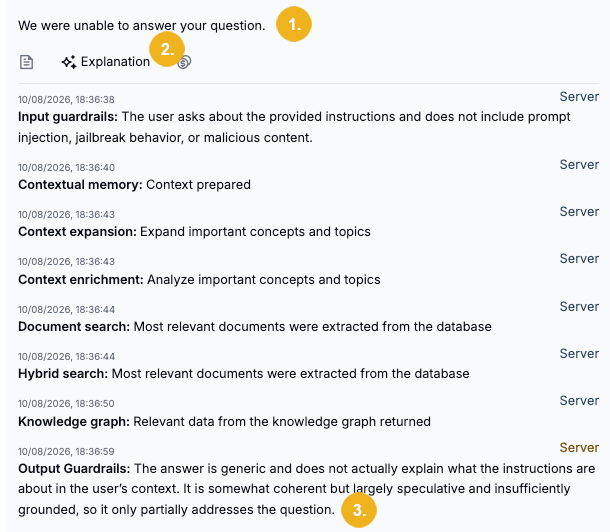
The app notifies you when it cannot answer a question (1) and provides a detailed Explanation (2) of the processing steps. After reviewing the process, you can view the details (3) explaining why no answer was returned.
This panel gives you instant access to details about the key terms and concepts within your corporate knowledge base within the chat.
Identified concepts are highlighted as links (5) and can be clicked to show the Concept details panel (5) on the right.
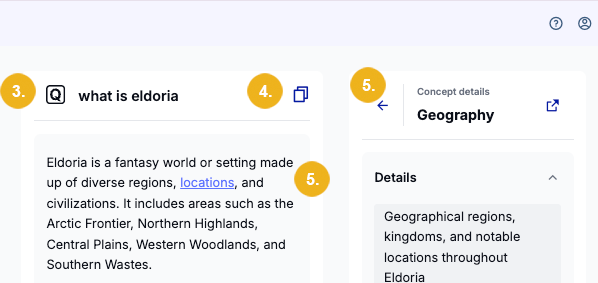
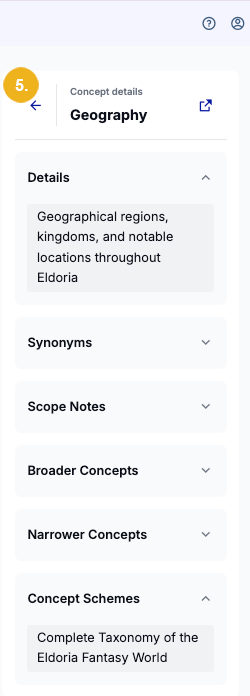
The information shown in the Concept details panel (5) is based on your company's knowledge base. This panel contains the following drop-downs:
 |
|
To open this panel simply click a concept highlighted as a link. There you will see the official concept name, synonyms and other verified details.
This panel is designed to provide the exact information on the concept you clicked. Sometimes it may include external links which open in a new tab displaying the official source of this term in your corporate vocabulary system (like Graph Modeling).
To close this panel use the leading back arrow. If you click a different highlighted concept in the answer this panel will be instantly updated with details relevant for the new concept.
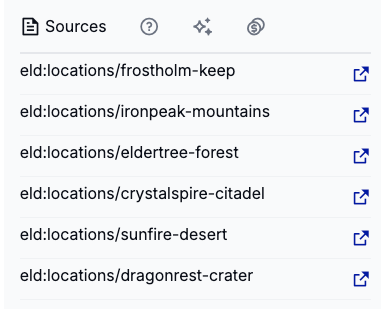
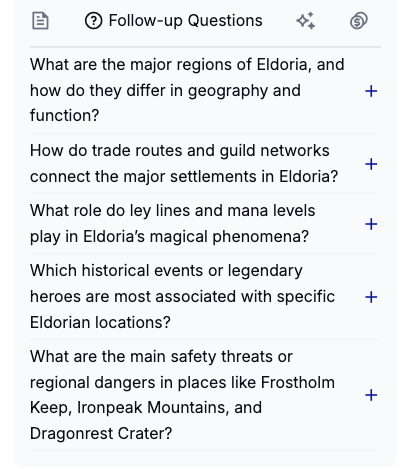
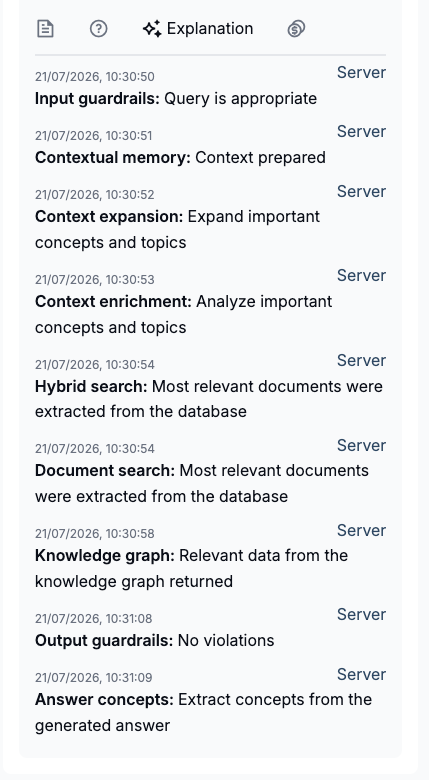
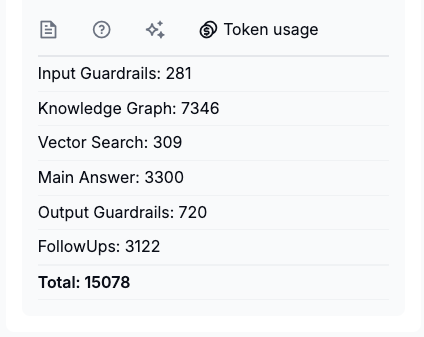
The Insights Panel is shown below every answer generated by the GraphRAG app.
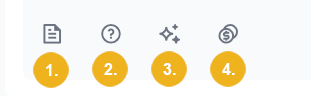
The four icons shown represent the following functions
Sources (1): a list containing the URLs of the sources used to generate the answer
Follow-up Questions (2): displays automatically generated follow-up questions based on the original question and the generated answer.
Explanation (3) - provides details of individual steps during answer generation.
Token usage (4): informs you how many tokens were used in every individual answer generation step and a total number of token consumed for the answer generation