Access the User Roles in Graph Modeling
Access the User Roles in Graph Modeling
This section contains a short guide on how to access the Roles node to manage user roles in Graph Modeling.
To manage user roles and to check on their members, use the User Administration in Graph Modeling.
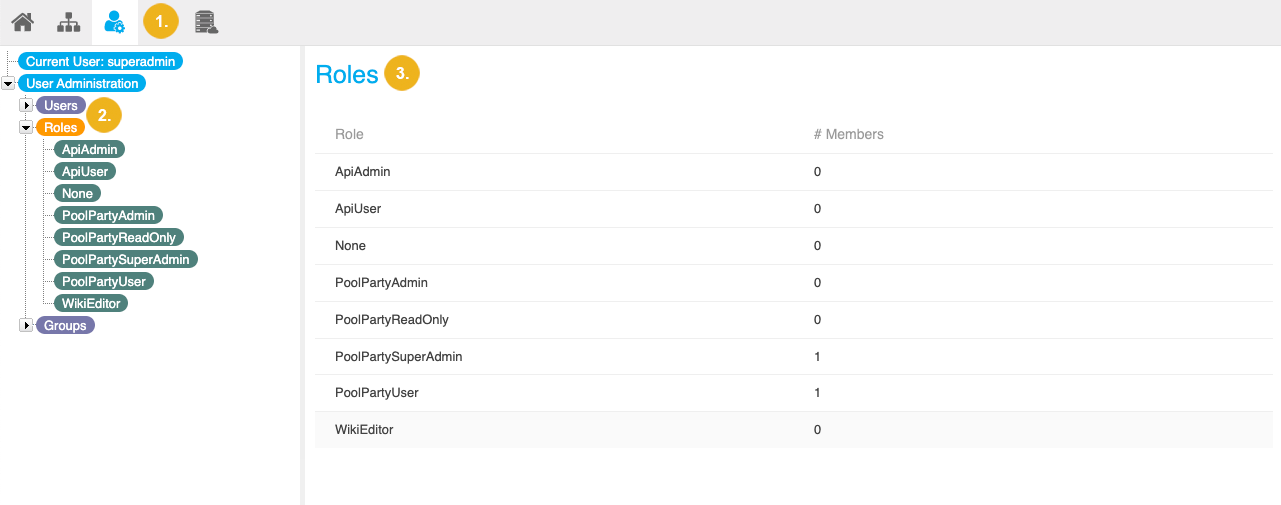
In order to access the Roles node, follow these steps:
Open the User Management using the icon in the toolbar.
Select the Roles node in the User Administration tree on the left.
On the right, the Details View for user roles is displayed and all existing user roles are listed. In addition, the column #Members displays the number of users that are part of each role.
Note
Details on how to edit role membership and determine permissions find here: How to Edit Existing Users and Access to User Settings for Graph Modeling Users.
Available Tabs in a Role's Details View
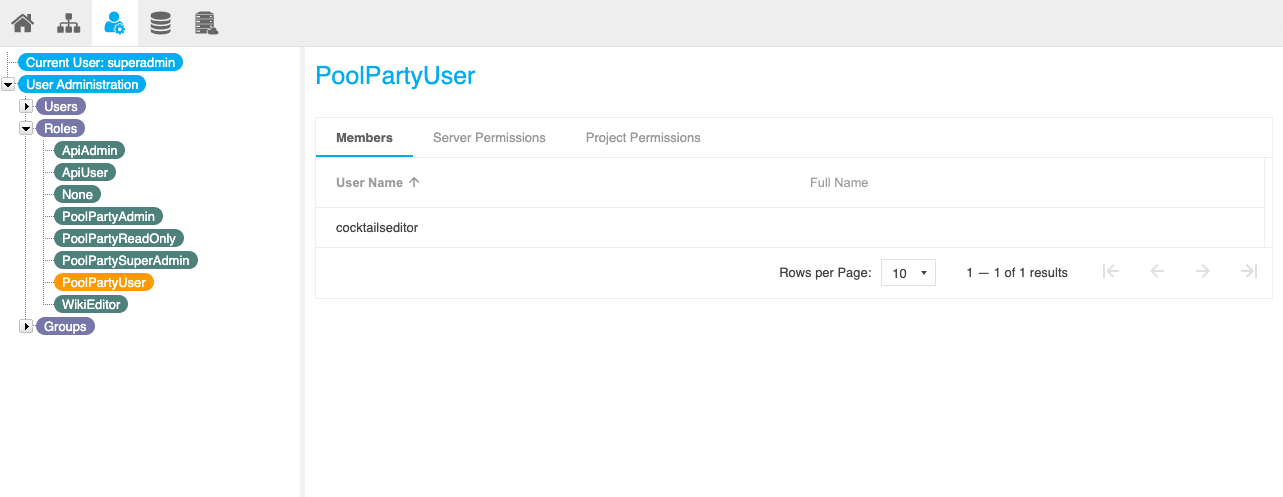
When you activate a role in the Roles node in the Hierarchy Tree of the User Administration, in the Details View on the right, three tabs become available:
The Members tab
The Server Permissions tab
The Project Permissions tab
 |