The GraphRAG App in a Nutshell
31/08/2026
GraphRAG version 1.3

The GraphRAG App user interface is comprised of these four areas after login:
The Start new thread (1) button is located underneath the GraphRAG logo. Click this button to clear the chat panel and begin a new conversation.
The Recent conversations (2) pulldown below this button lists all automatically saved conversations starting with your very first question. This panel also contains New conversation button (2a) which has the same function as the Start new thread button (1) above.
Tip
You can access this list at any time and reload any previous conversation with a simple click. If desired, you can delete any of the previous conversations with a click on the bin icon and then confirm the deletion with a click on the check-mark icon.
The chat panel (3 Ask a question...) is the main area where you type in your questions and retrieve the chatbot's answers along with the possibility to view the source documents, explanations of reasoning behind every answer, use of tokens as well as suggestions of possible follow-up questions.
The top right corner (4) shows two icons - a question mark (?) which then delivers the About and Versions details of the app and the user icon where you can securely log out from the app.
While the system is generating an answer to your question you will see messages displayed below the two buttons informing you in real-time how the system passes through the individual steps of answer generation. Details related to a concept highlighted in the final answer generated by the application will also be displayed on the right-hand side.


When you click on the question mark icon (1) here you see the following menu items:
Help - opens the public documentation portal
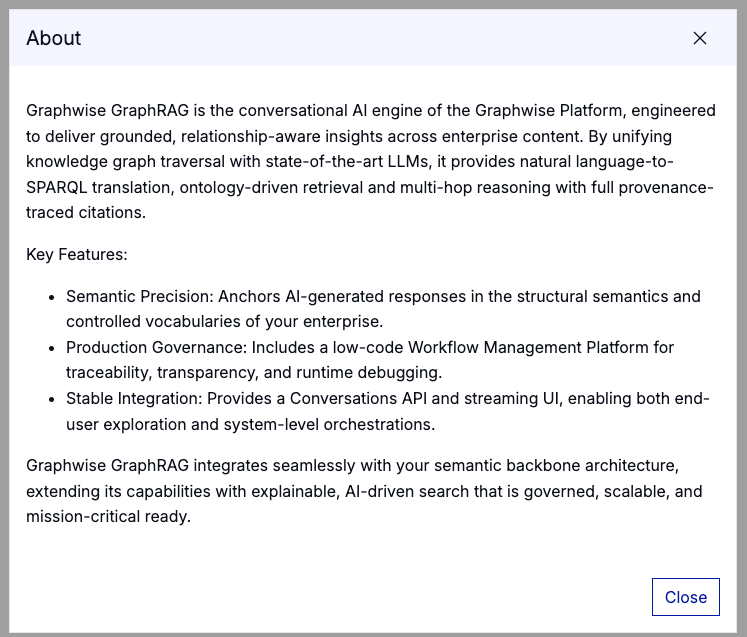
About (2) - opens a new window with information about GraphRAG including some background and compliance details.
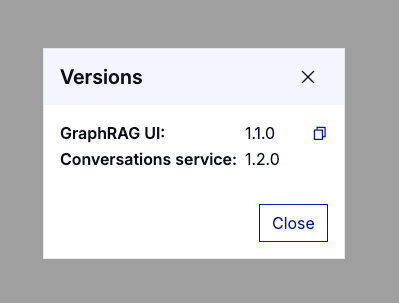
Versions (3) - opens a window showing the current versions underlying GraphRAG
Tip
You can copy the version details to clipboard with a click on the two-page icon.
