Bulk Operations
29/09/2026
Multiselection allows you to select and manage multiple concepts simultaneously, significantly streamlining thesaurus management.
By default, the thesaurus tree operates in single selection mode. You can activate multiselection mode using either keyboard shortcuts or the context menu:
Keyboard Shortcuts:
Select Individual Concepts: Click a concept to select it, then press and hold Ctrl + click (Windows/Linux) or Cmd + click (macOS) on additional concepts to add or remove them from the selection.
Select Range: Click the first concept, then hold Shift + click another concept to select or deselect all continuous concepts between them.
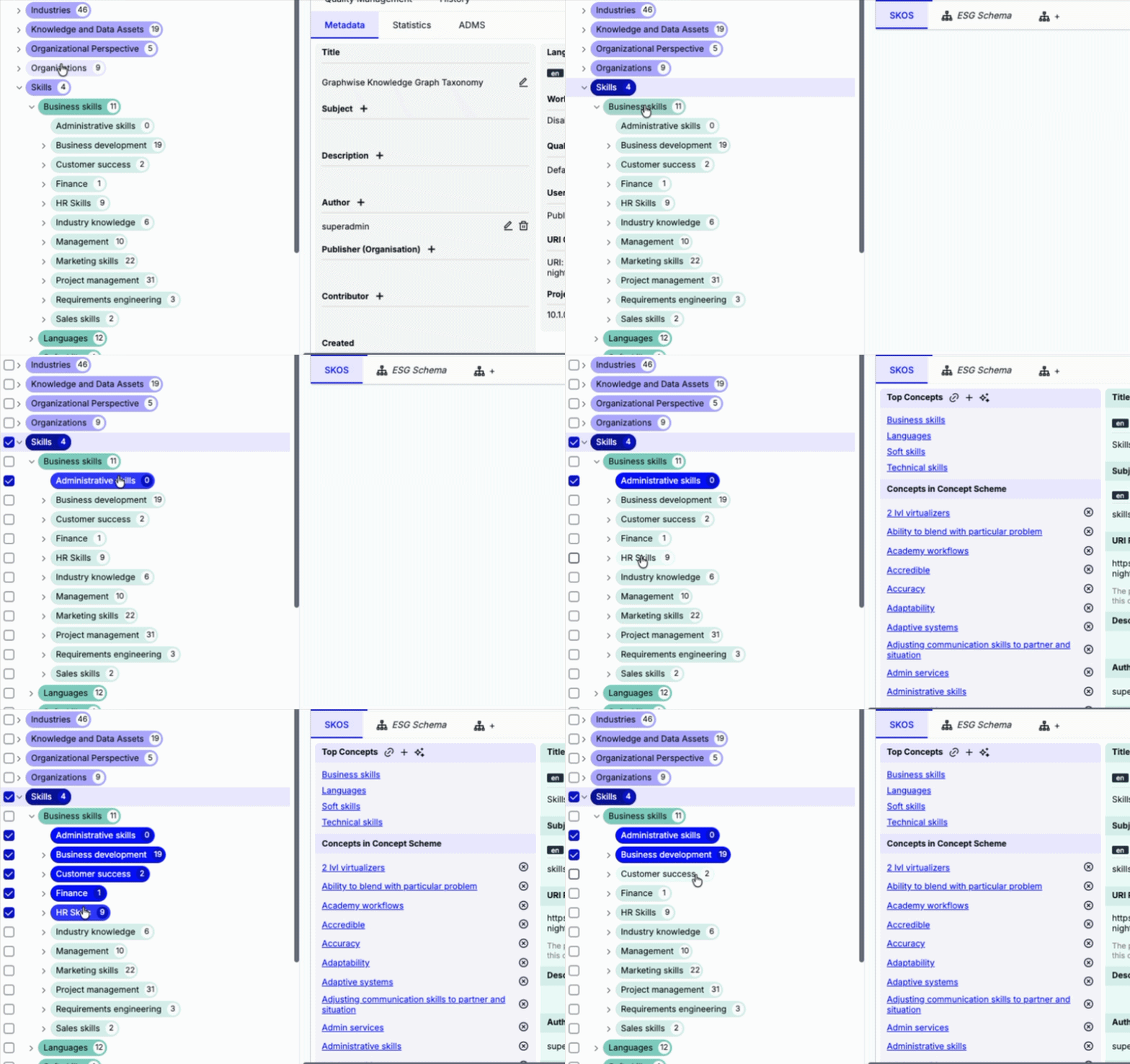
Context Menu:
Right-click any concept in the tree and select Start Multiselection.
The context menu of a concept scheme displays the option to Select All Top Concepts which activates multiselection and automatically includes all of its top concepts.
The context menu of a concept with narrower concepts additionally reveals the option to Select All Narrower Concepts which activates multiselection and automatically includes all of its child nodes.
When multiselection is active, the context menu of a concept with narrower concepts reveals the option to Add All Narrower Concepts to Multiselection to automatically include all of its narrower concepts in your selection.
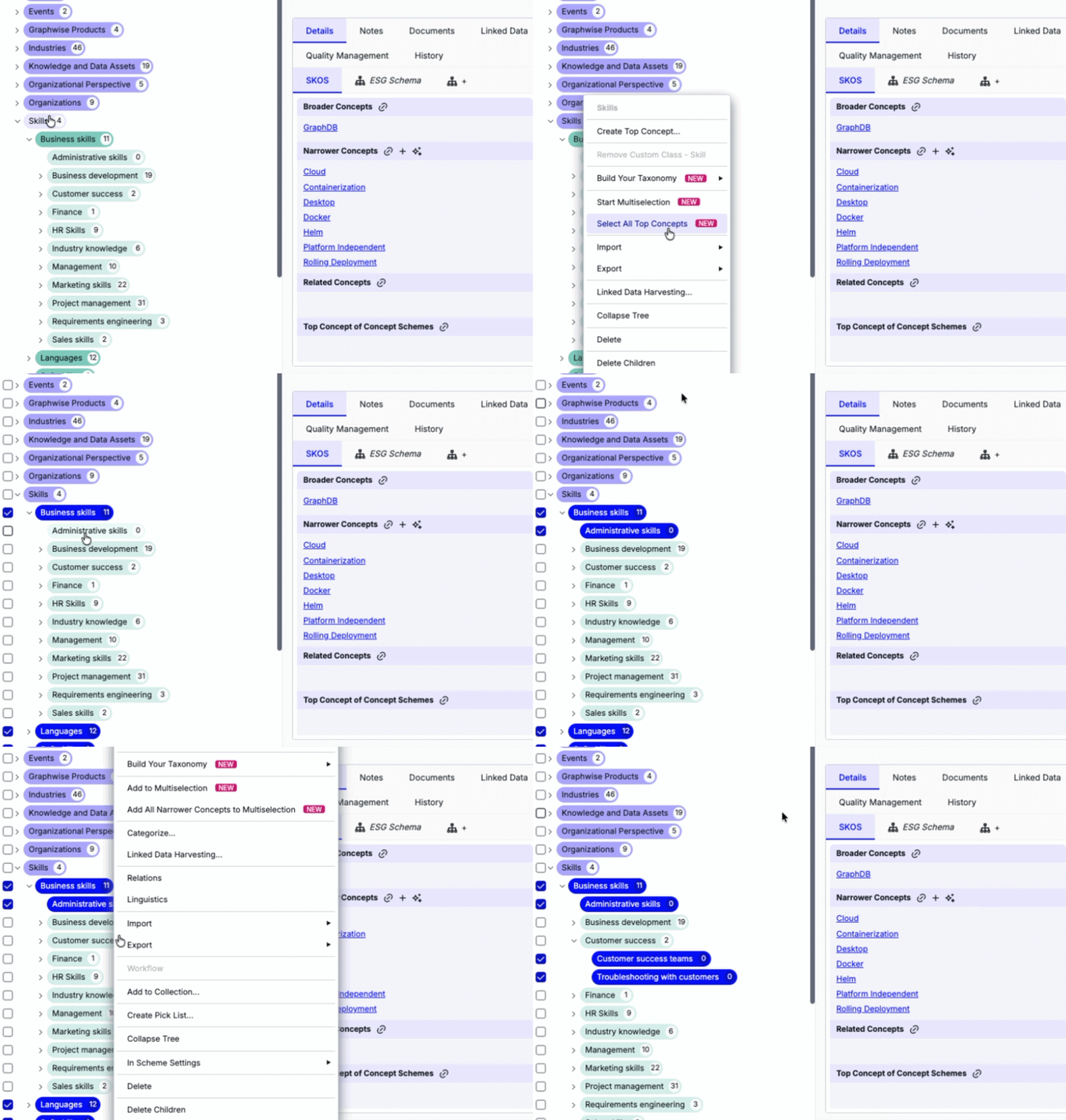
Once multiselection mode is active, checkboxes appear next to selectable concepts, and the total count of selected items displays at the top of the tree view. You can click the (X) button in the top-right corner to clear all selections at any time.
You can perform the following actions while in multiselection mode:
You can drag and drop multiple selected nodes directly within the tree to perform hierarchy updates in bulk. To do so, simply drag and drop the selected nodes on top of a target node to make them the target node's narrower concepts. General restrictions apply.
Drag and drop the selected nodes on top of a target node to make them the target node's narrower concepts.
Unless you ticked Do not show this dialog again, a confirmation dialog will appear. Review the dialog and click Confirm to apply your changes.
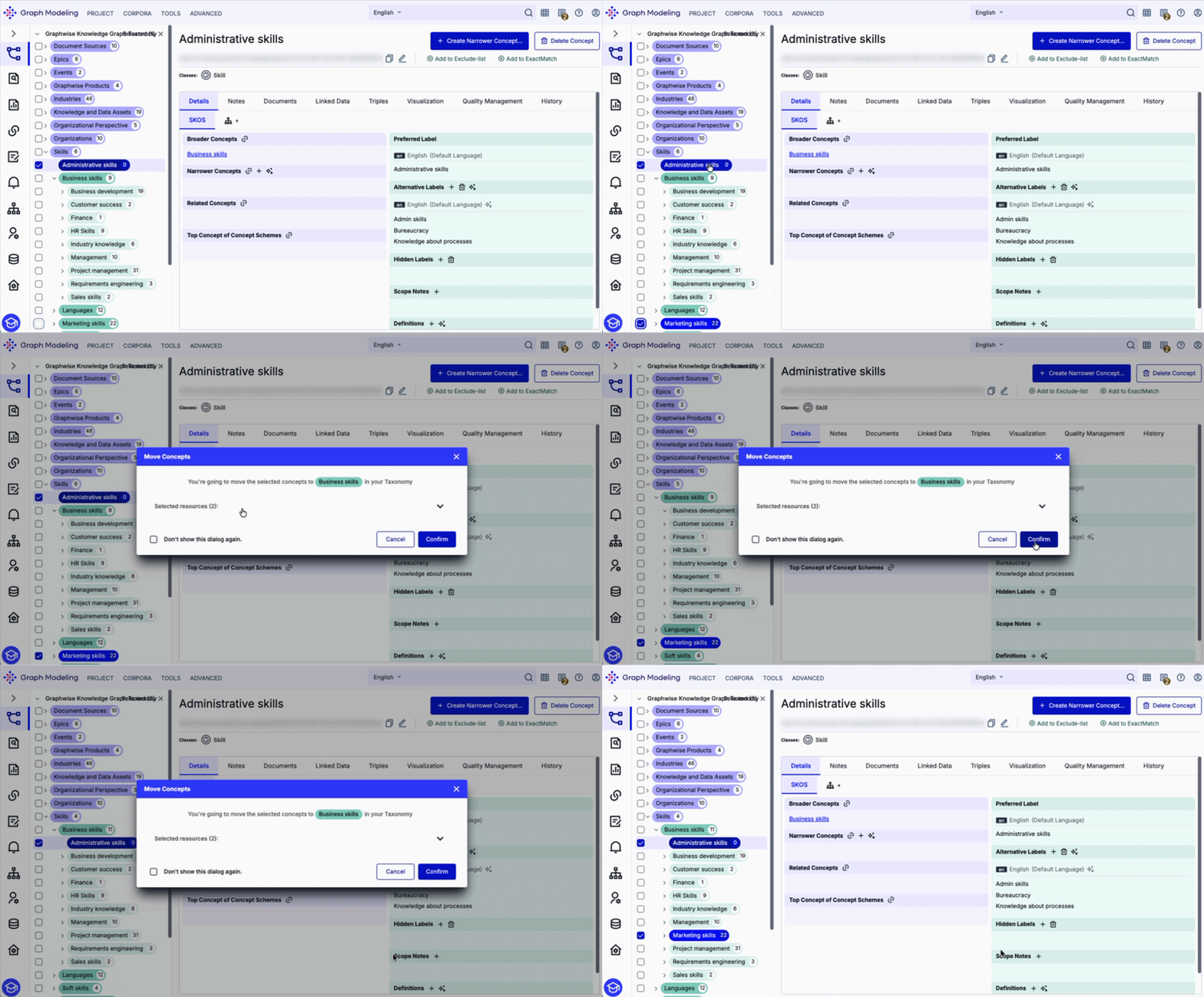
General restrictions of the move operation in Graph Modeling apply. Keep in mind that concept schemes cannot be moved within the tree hierarchy. If a concept scheme is included in your current selection, deselect it to enable this operation.
Note
Currently, bulk operations only support the moving operation. Additional bulk features, such as copy-pasting nodes (creating additional relations) and linking related concepts, are planned for future releases.
Assign or clear custom classes across all selected concepts:
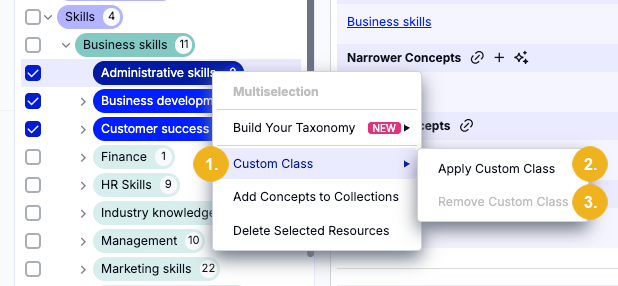
Right-click a selected concept and hover over Custom Class (1) to reveal two options:
Select Apply Custom Class (2) to open the assignment dialog, pick the desired scheme/class, and optionally apply it to subtrees.
Select Remove Custom Class (3) to remove assigned custom classes across all selected items. This option is grayed out if no custom class has been assigned to that concept.
Group multiple concepts into collections in a single action:
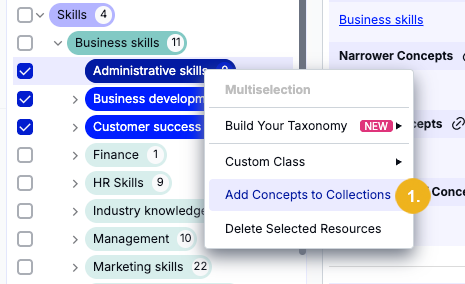
Right-click a selected concept and select Add Concepts to Collections (1).
Choose one or more target collections from the dialog.
Review the concept list and click Confirm.
Alternatively, you can select multiple concepts and add them to an existing collection using drag and drop:
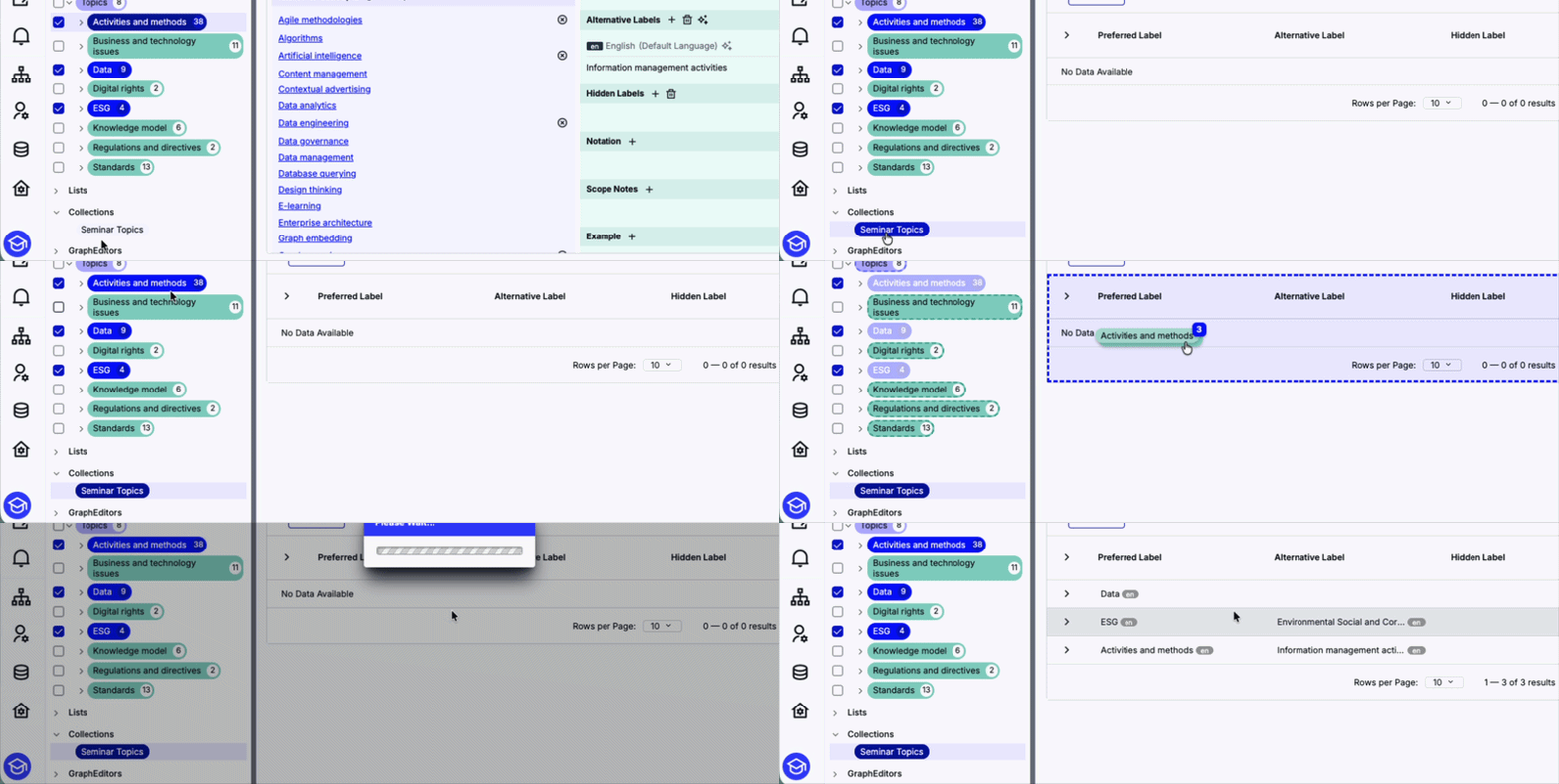
Click on the target collection in the Collections node underneath the taxonomy tree to open it.
Drag and drop the selected concepts into the collection's Details View on the right. The drop area will be highlighted as soon as you begin dragging concepts.
Note
Concept schemes cannot be added to collections. If a concept scheme is included in your current selection, deselect it to enable this operation.
Delete multiple concepts in your thesaurus at once:
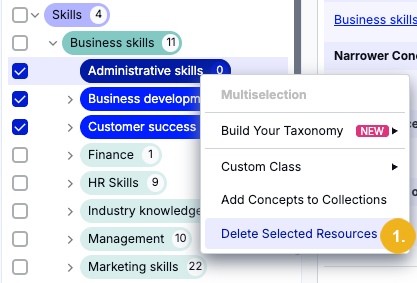
Right-click a selected concept and choose Delete Selected Resources (1).
Review the list of all targeted concepts in the confirmation dialog.
Caution
Deleting concepts also permanently removes all associated narrower concepts. Make sure you do not accidentally include concepts you want to keep before proceeding.
Click Confirm to delete all selected resources including any narrower concepts.